
Frequently bought together on Shopify help increase average order value (AOV) by encouraging customers to purchase relevant products together, sometimes with a bundle discount.
For example, a customer viewing a shirt may also be shown pants or jeans. These recommendations work because they are relevant to the original purchase and save the customer from searching for each item separately.
This guide explains how to add frequently bought together offers on Shopify and optimize them for better results.
What is frequently bought together on Shopify?
Frequently bought together is a cross-selling strategy that presents two or three complementary products alongside the item a customer is viewing or purchasing.
The format was popularized by Amazon and is commonly described as an “Amazon-style product recommendation”.
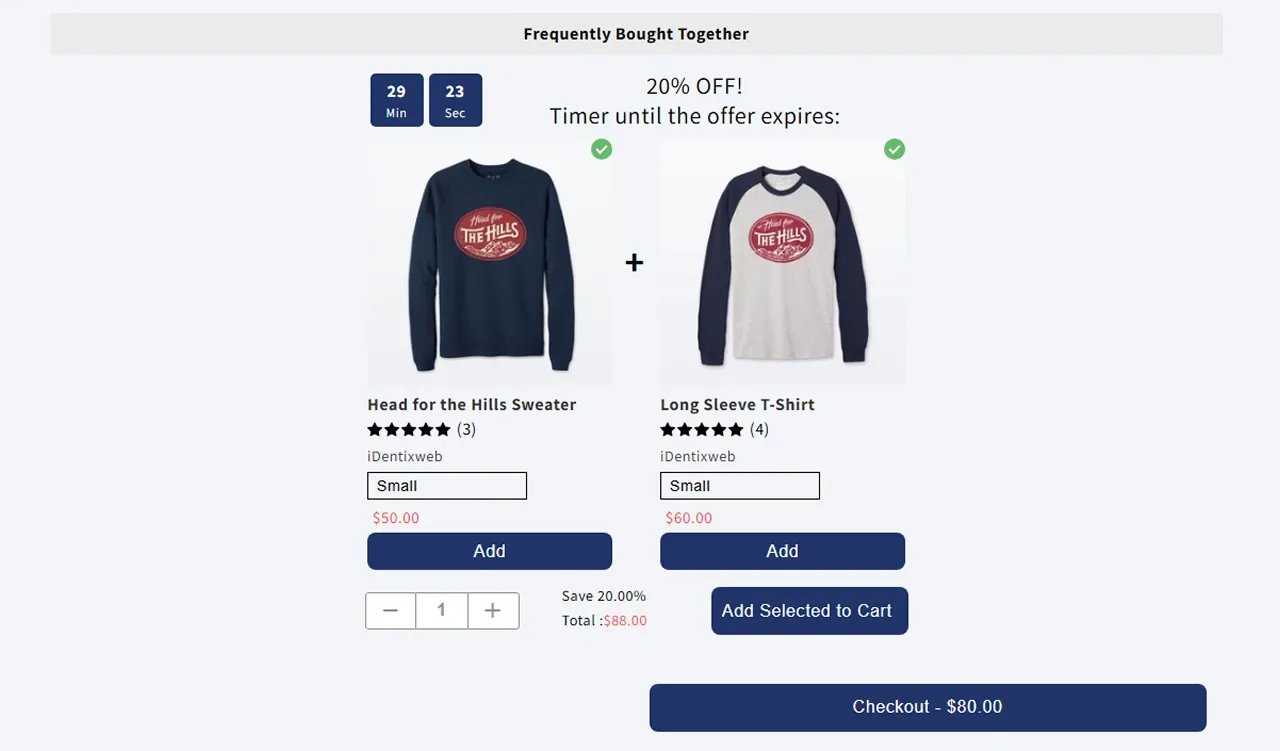
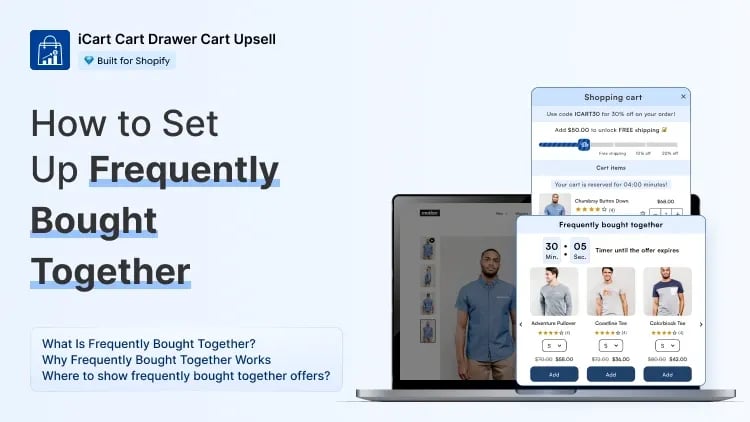
iCart’s Amazon Style “Frequently Bought Together” Widget
Did you know? McKinsey reported that product recommendations influenced around 35% of purchases on Amazon. Although the figure comes from a 2013 study and should be treated as a historical benchmark, it shows how important relevant recommendations have been to Amazon’s shopping experience.
How Does Frequently Bought Together Work?
Frequently bought together works by identifying products that complement the item a shopper has selected and presenting them as one convenient offer.
A typical FBT offer includes:
- The product already selected by the customer
- Two or three complementary products
- Product images, prices, and variants
- A combined bundle price
- An optional discount
- An Add Bundle to Cart button
For example, when a customer adds a camera to the cart, the store may recommend a memory card and camera bag. The customer can select the products they need and add them without searching through different collections.
Benefits of using frequently bought together
For Shopify merchants, this strategy can:
Increase average order value: Encourage customers to purchase more than one product in a single order.
Improve product discovery: Introduce shoppers to related items they may not have noticed.
Make shopping more convenient: Show useful add-ons at the right time without interrupting the purchase journey.
Support better cross-selling: Recommend products that naturally work well together.
Boost revenue from existing traffic: Generate more value from current visitors without relying only on new customer acquisition.
How to add frequently bought together on shopify
The easiest way to add FBT bundles on Shopify is to use an upsell app such as iCart.
With iCart’s Product Bundle Widget, you can display complementary products directly inside the cart drawer, cart popup or cart page, similar to Amazon frequently bought together.
Follow these steps to create a similar offer using iCart.
Step 1: Install iCart on Your Shopify Store
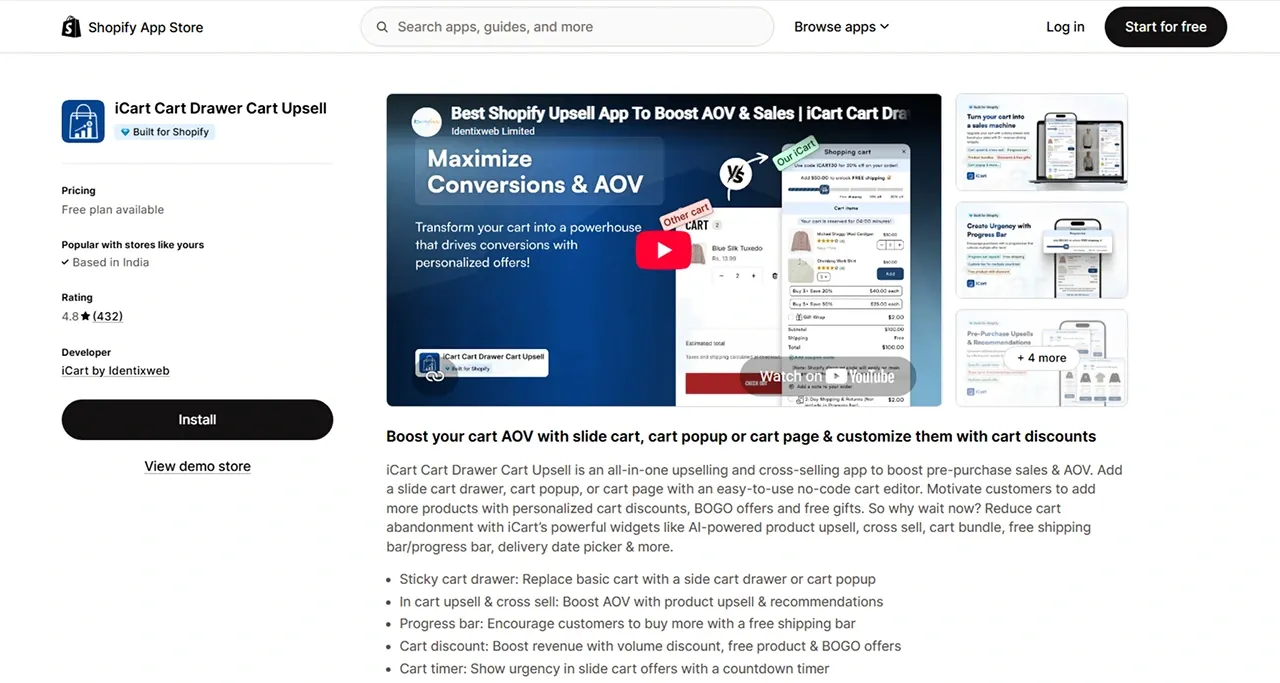
Visit the Shopify App Store and install iCart Cart Drawer Cart Upsell. Once the installation is complete, open iCart from your Shopify admin dashboard and enable the app in your Shopify store.
Step 2: Open the iCart Cart Editor
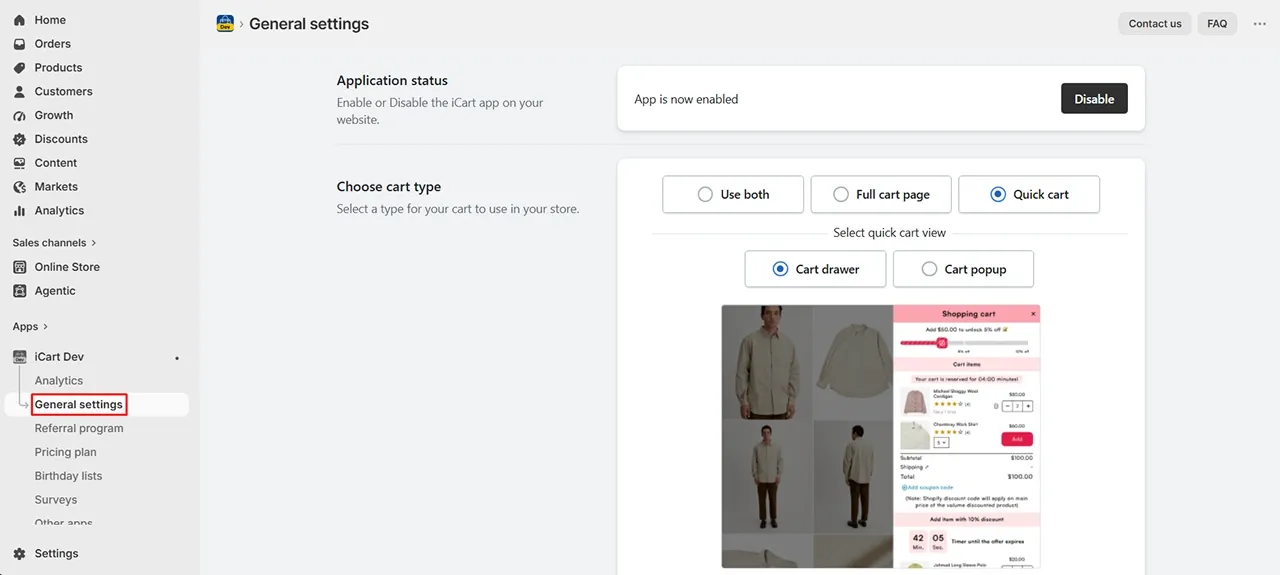
From the iCart dashboard, open the “General settings” from the side panel and choose the cart type in which you want to show the product bundle widget and click on the Customize button from the app’s dashboard.
This will take you to iCart’s cart editor. Here, you can add new widgets, change their position, customize their appearance, and preview how the cart will look on your store.
Step 3: Add the Product Bundle Widget
Inside the cart editor, click “Add Widget” and select “Product Bundle”. This widget allows you to display relevant products inside the cart based on the items customers are purchasing.
Place the widget below the cart items so shoppers first see the products they have selected and then discover related add-ons.
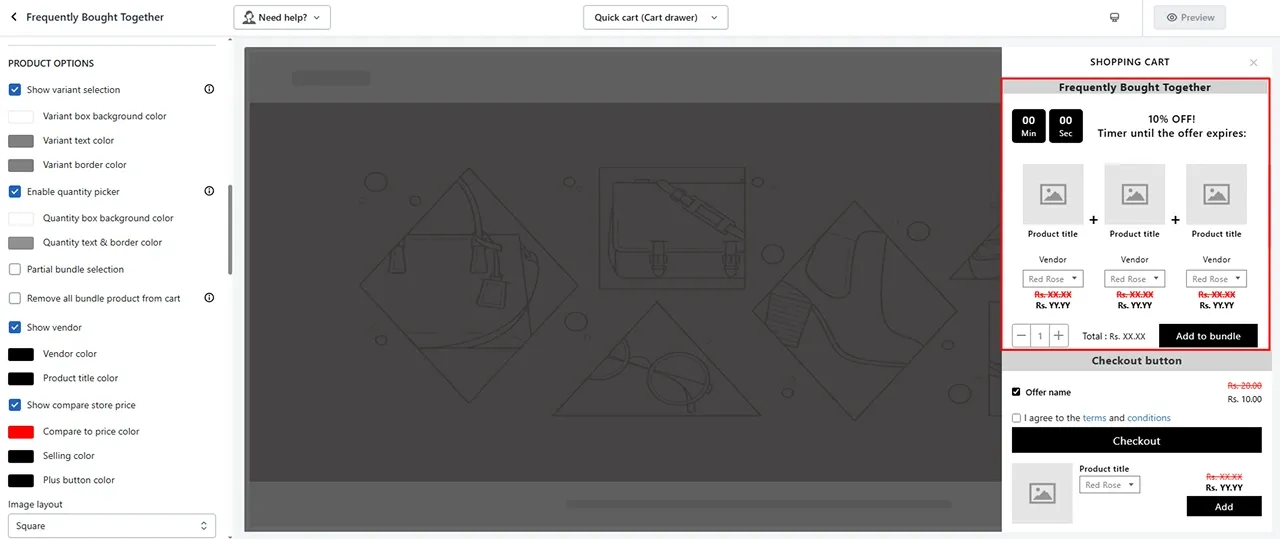
You can use headings such as:
- Frequently Bought Together
- Complete Your Order
- You May Also Like
- Customers Also Bought
- Add These Before Checkout
Choose a heading that clearly tells customers why the recommended products are relevant.
Step 4: Choose the Products You Want to Recommend
Next, select where iCart should get the recommended products from.
You can display:
- AI-recommended products
- Specific products
Choose products that naturally complement the main purchase. Avoid recommending unrelated products simply because they have a higher price.
Step 5: Choose the Product Display Layout
iCart lets you control how the recommended products appear inside the cart. You can choose between a list layout and a grid layout.
A list layout is suitable when you want to display a small number of recommendations without making the cart feel crowded. A grid layout is more visual and can display multiple products in each row.
Tip: Start with two or three highly relevant recommendations. Too many products can distract customers and make the cart difficult to use on mobile devices.
Step 6: Add a Discount or Special Offer
These recommendations can work without a discount, but an incentive may encourage more customers to accept the offer.
With iCart, you can add offers such as:
- Percentage discounts
- Fixed-amount discounts
- Manual price offers
- Limited-time offers
You can also display the original price, discounted price, and total savings to make the value of the offer easier to understand.
Keep the offer simple. For example:
- Add this item and save 10%
- Complete the set and save $5
- Add one more item to unlock the offer
Step 7: Set Display Rules for Better Relevance
Use iCart’s display rules to control when the Product Bundle widget appears. Display rules help you avoid showing the same generic recommendations to every shopper.
You can show different recommendations based on conditions such as:
- Cart sum
- Number of cart items
- Specific collection
- Specific item
- Product tags
- User location and other conditions
Step 8: Preview and Test the Recommendation
Before publishing the offer, review it in iCart’s preview area.
Check the layout on both desktop and mobile devices. Then visit your storefront and add one of the main products to the cart.
Make sure that:
- The correct products are recommended.
- Product images and prices appear properly.
- Customers can select available variants.
- The add-to-cart button works.
- Discounts are applied correctly.
- The widget is easy to use on mobile.
- Products already in the cart are not recommended unnecessarily.
Once everything works correctly, save and publish the changes.
Where to Display Frequently Bought Together on Shopify
The offers can appear at different stages of the customer journey.
Product page
This placement introduces complementary products while the customer is still considering the main purchase.
Cart drawer
The cart drawer is a strong location because the customer has already added a product and shown buying intent. iCart lets merchants display bundles directly inside a customizable side cart drawer.
Cart popup
A cart popup can display an immediate bundle recommendation after the customer adds an item.
Cart page
The cart page gives merchants more space to display product images, bundle savings, product variants, and additional information.
Common Mistakes to Avoid
Recommending unrelated items
Random recommendations can make the offer feel like an aggressive sales tactic.
Showing too many products
A long list increases decision-making effort and can overcrowd the cart.
Using the same bundle for every product
A generic offer may work for some products but appear irrelevant for others. Use product, collection, and tag-based rules to create targeted offers.
Recommending unavailable products
Check inventory regularly so that out-of-stock products do not weaken the offer.
Ignoring products already in the cart
Repeatedly recommending the same product creates an unnecessary and confusing experience.
Publishing without testing
Test variant selection, pricing, discounts, add-to-cart actions, and mobile responsiveness before making the bundle live.
How to Measure Frequently Bought Together Performance
Track the following metrics after publishing your frequently bought together Shopify offer:
- Bundle add-to-cart rate: Percentage of shoppers who add at least one recommended product
- Bundle acceptance rate: Percentage of eligible customers who purchase the offer
- Average order value: Compare AOV before and after introducing the bundle
- Revenue from recommended products: Revenue generated by products shown in the offer
- Conversion rate: Check whether the widget helps sales without disrupting checkout
- Top-performing combinations: Identify which product pairings generate the most purchases
Create FBT Now
Frequently bought together offers help customers discover useful add-ons while giving Shopify merchants an opportunity to increase average order value from existing traffic. The strongest offers combine two or three products that naturally belong together, clearly communicate the value, and appear at the right point in the buying journey.
With iCart’s Product Bundle widget, you can create Amazon-style frequently bought together offers inside the cart drawer, cart popup, or cart page without coding. Choose Shopify-recommended or specific products, offer a percentage or fixed discount, set targeted display rules, and customize the bundle to match your store.
Install iCart and create your first frequently bought together bundle today.