
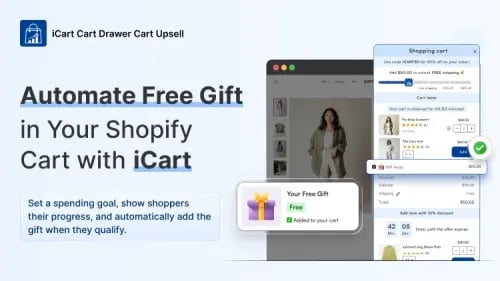
Free gifts can encourage customers to spend more, but the offer loses impact if shoppers have to find and add the gift themselves.
With iCart, Shopify merchants can show customers their progress toward a spending goal and automatically add the selected gift when the cart qualifies.
In this guide, you’ll compare Shopify’s native Buy X Get Y discount with iCart and learn how to create an automated free-gift campaign in your cart drawer without manually checking orders or asking customers to enter a discount code.
Two Ways to Offer a Free Gift on Shopify
- Shopify’s native Buy X Get Y discount: The customer must add the gift product to the cart before Shopify applies the discount.
- iCart’s automated free-gift offer: iCart shows the customer’s progress toward your spending threshold and automatically adds the selected gift when the cart qualifies.
The main difference is customer effort. Shopify can discount the gift, while iCart creates a more automated cart experience that helps customers discover and unlock the offer.
Shopify Native Discount vs. iCart: Which Fits Your Free-Gift Campaign?
| Comparision |
Shopify Buy X Get Y |
iCart |
| Customer adds the gift |
Manually |
Automatically when the configured threshold is reached |
| Progress toward the reward |
Not built in |
Live progress bar |
| Cart experience |
Applies the discount after the required products are added |
Promotes and unlocks the offer inside the cart |
| Reward options |
Free or discounted products |
Free products, free shipping, percentage discounts, and fixed discounts |
| Discount combinations |
Depends on discount class, combination settings, and Shopify plan |
Depends on the iCart offer and Shopify discount settings |
| Best for |
Simple campaigns where manual gift selection is acceptable |
Automated, visible, and ongoing cart incentives |
If you're testing this for a weekend sale, native BXGY is faster to set up and tear down.
If a gift is becoming a permanent part of how you sell, the app method pays off; customers see their progress toward the gift instead of discovering it at checkout.
Method 1: The Native Way, No App Required
Create the free-gift promotion using Shopify's native Buy X get Y automatic discount.
- Create the gift product. Go to Products > Add product, add inventory, and make it available on your Online Store.
- Open Discounts. From the Shopify admin, go to Discounts > Create discount.
- Select "Buy X get Y." This lets customers receive a specific product free after meeting your purchase requirement
- Choose Automatic discount under Method, so it applies without a code.
- Name the promotion, e.g., Free Gift on Orders Over $75. This title shows to customers in the cart and checkout.
- Set the purchase requirement under Customer buys: a minimum quantity or a minimum purchase amount, then pick the qualifying products or collections.
- Select the free gift under Customer gets: quantity 1, specific product, and set the discounted value to Free.
- Cap it at one per order. Enable "Set the maximum number of uses per order" and enter 1; otherwise, the gift can apply repeatedly.
- Set eligibility: all customers, specific customers, customer segments, or selected markets.
- Set start and end dates. Without an end date, the promotion runs until you manually deactivate it.
- Save, then test it on your live storefront before calling it done.
You can also run Buy One Get One sales; see the full guide to running BOGO sales with and without an app.
If you want this to run automatically instead, here's how to set it up with iCart.
Method 2: Automatically Add a Free Gift With iCart
- Log in to your Shopify store.
- Go to Apps and install iCart Cart Drawer Cart Upsell.
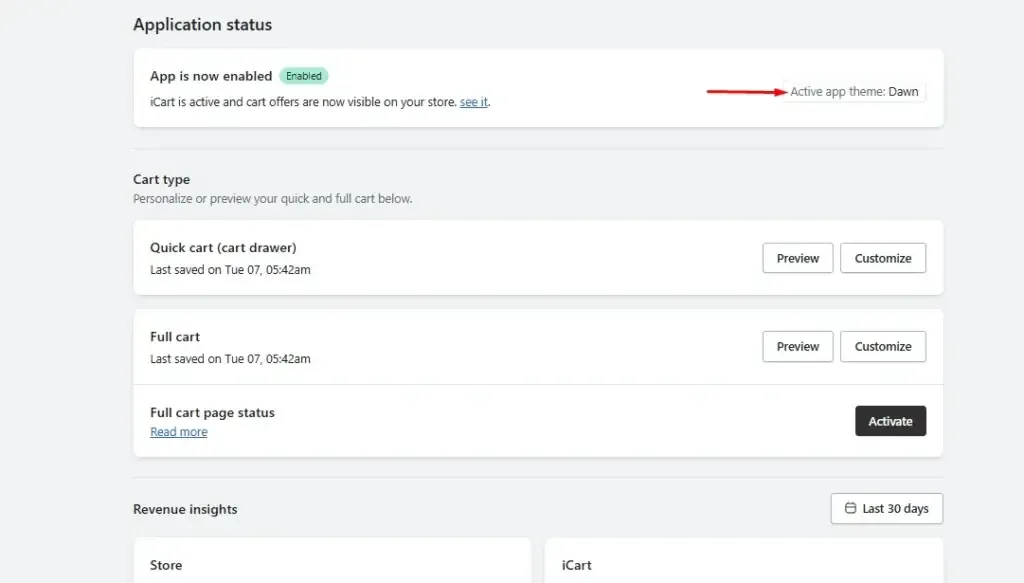
- Activate it in your theme. Click "Customize" on either the cart drawer or full cart.
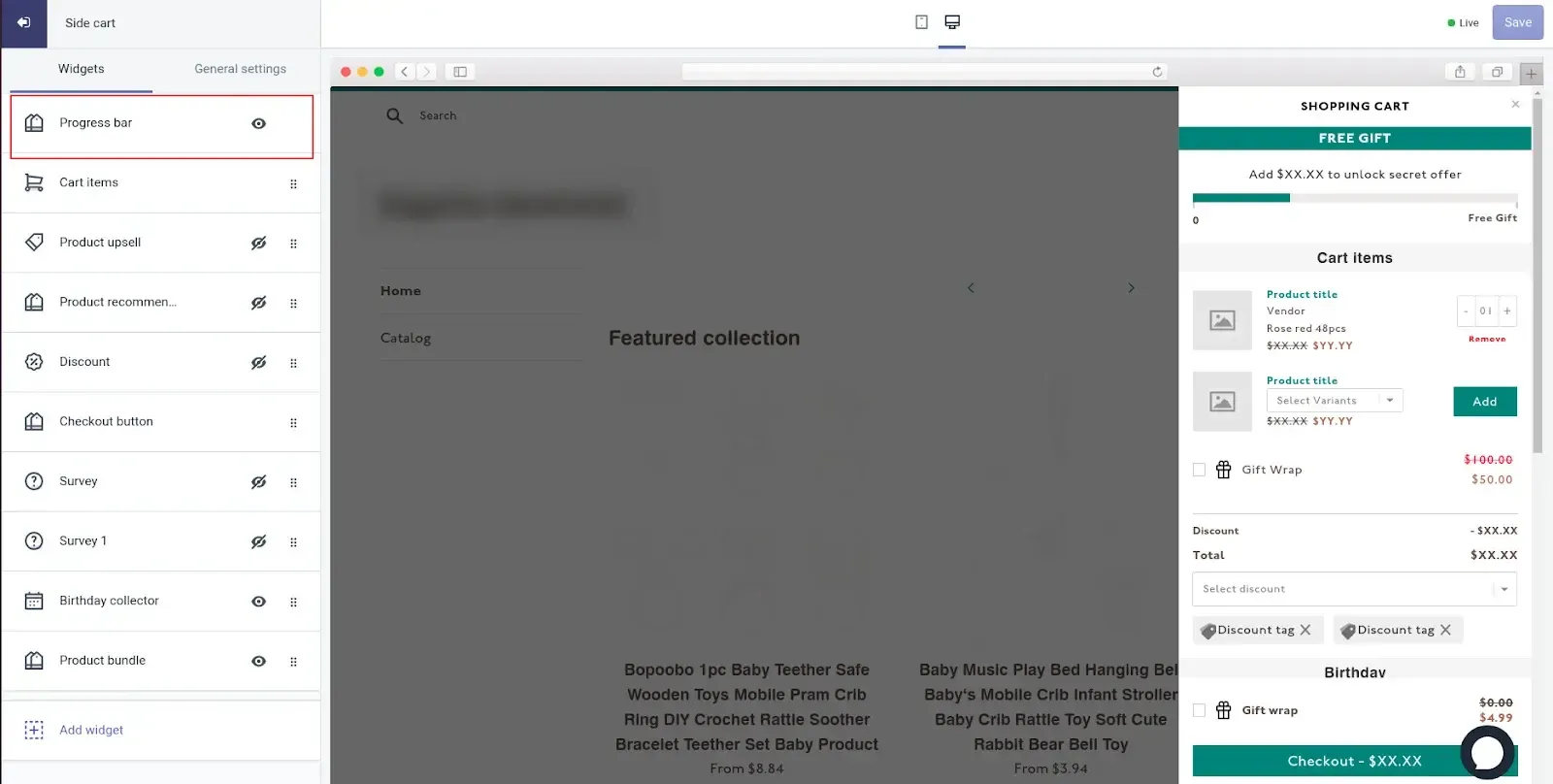
- Open the Progress Bar widget from the widget section.
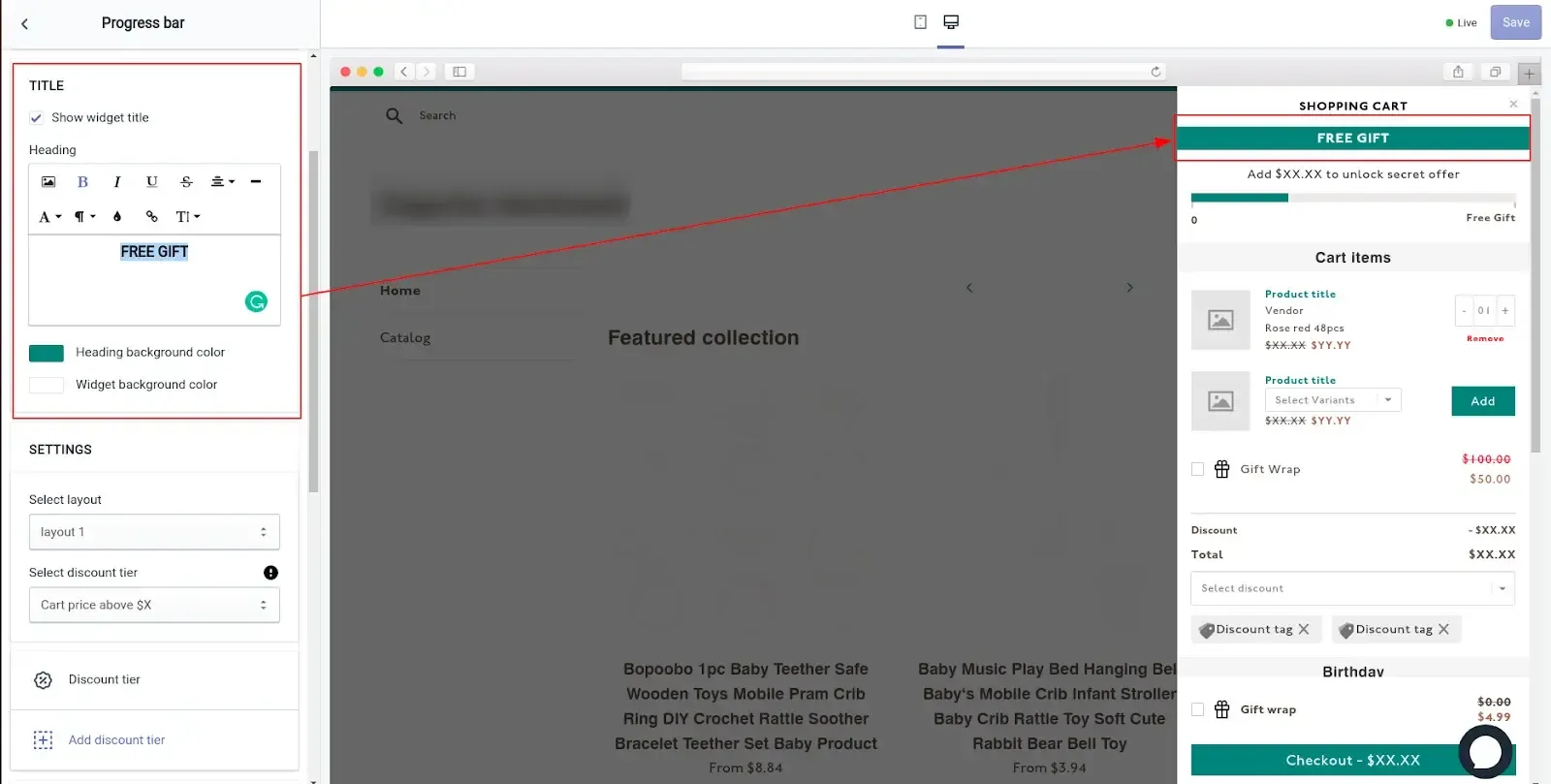
- Enable "Show widget title" and rename it to FREE GIFT.
- Choose your layout.
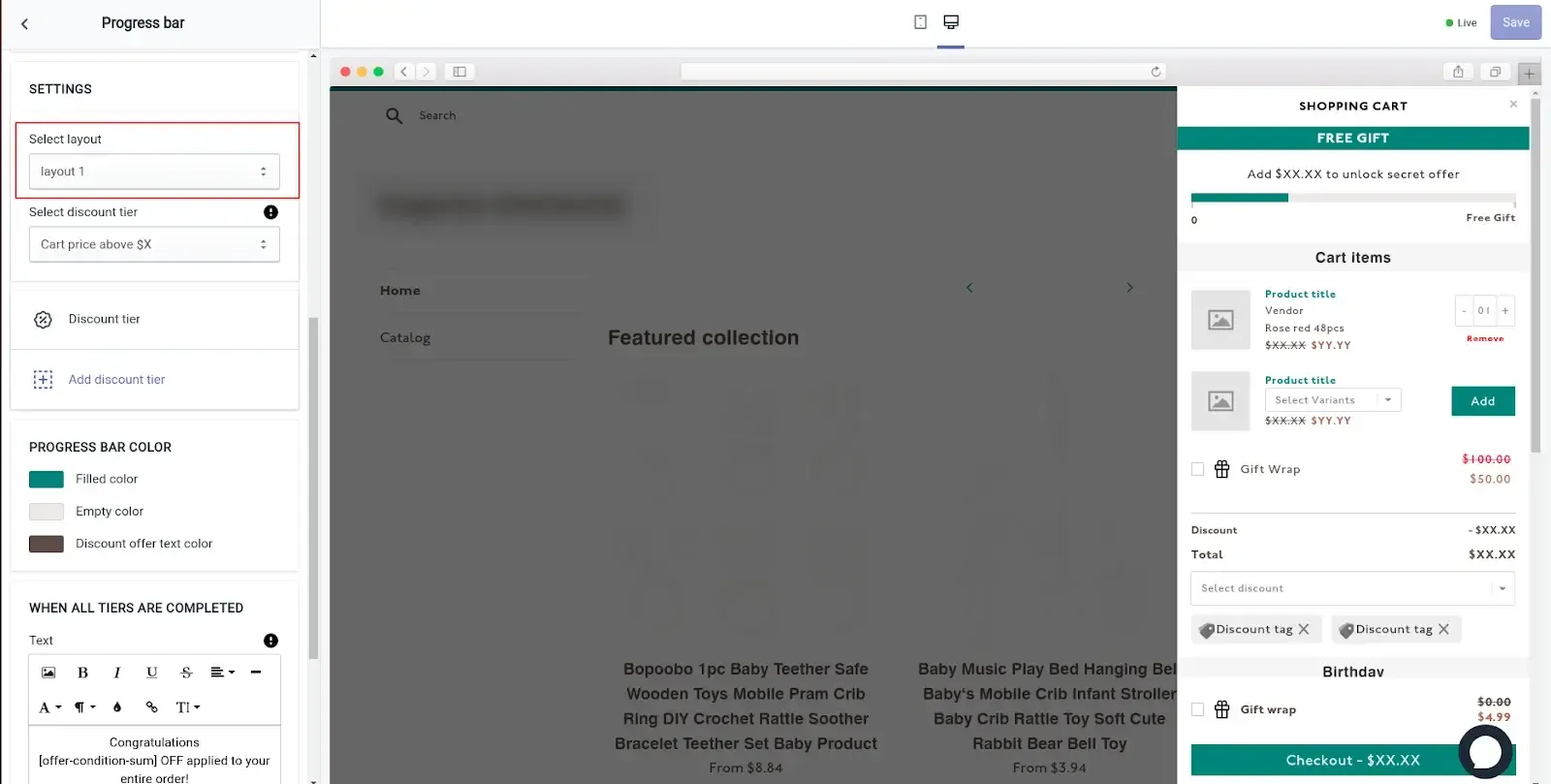
- Set up one Discount tier, "Cart price above $X." Delete any extra tiers; you only need one for a single free-gift threshold.
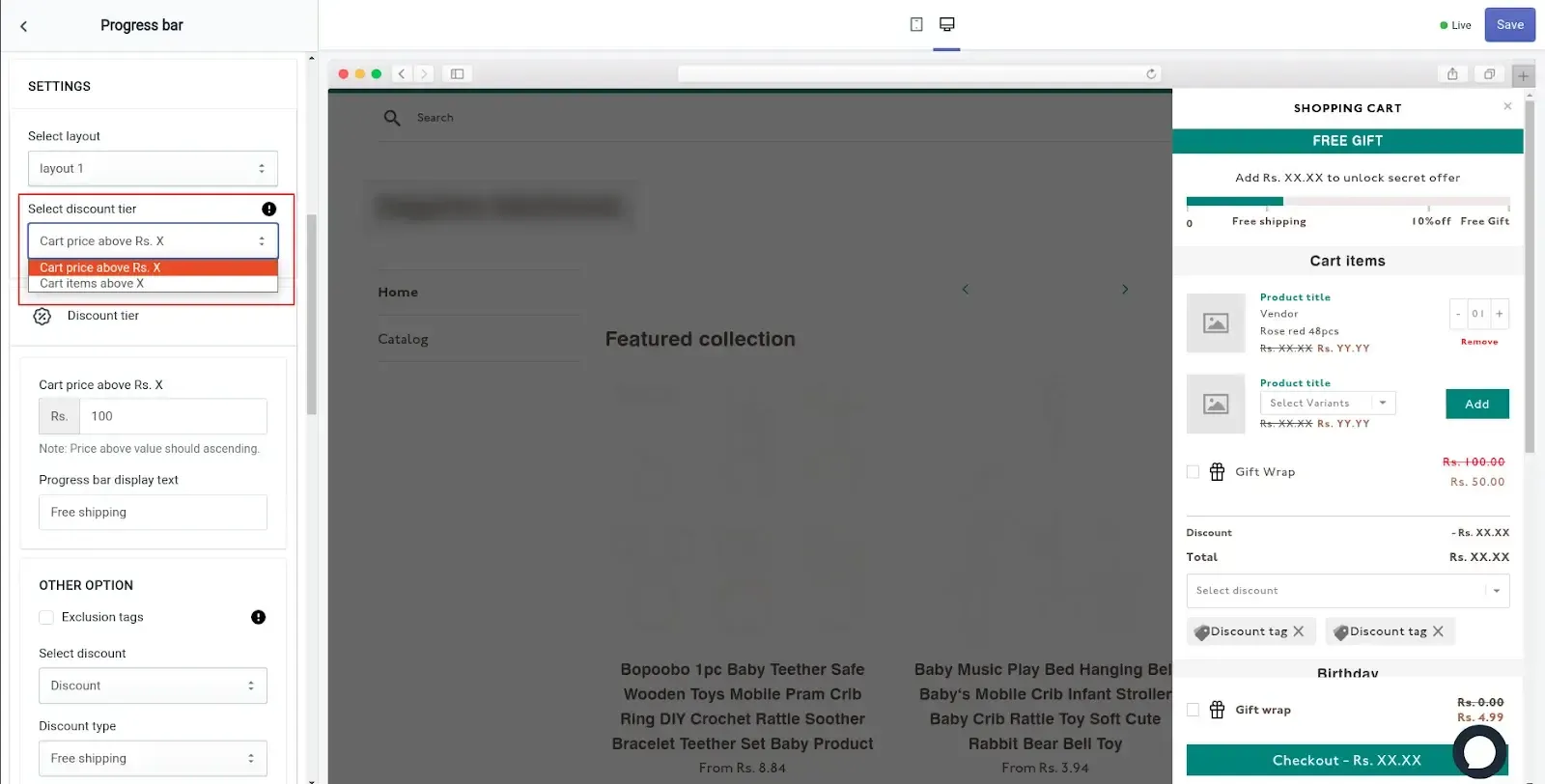
- Enter your target cart value (X). This is the exact number the customer's cart must reach to unlock the gift.
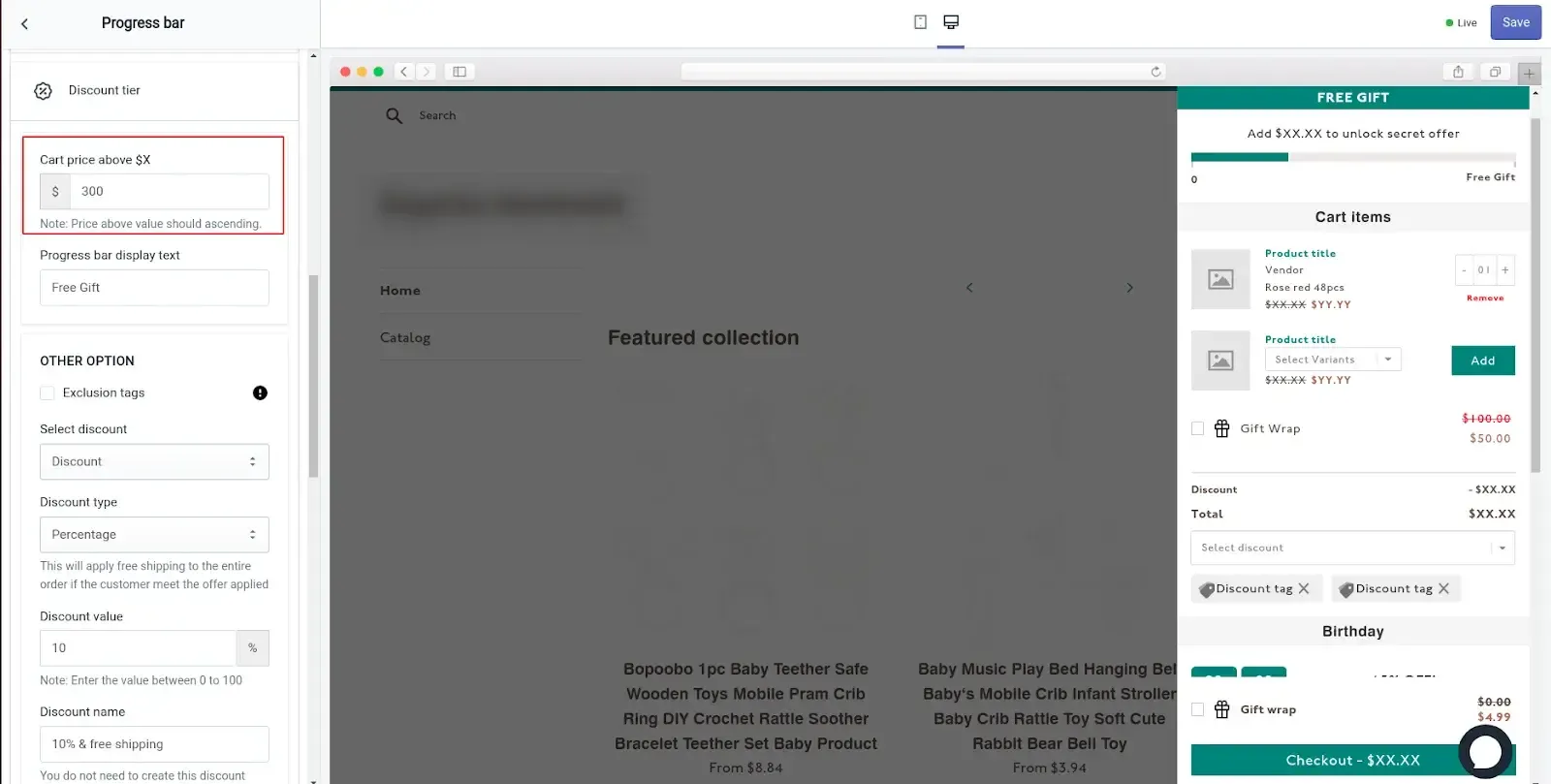
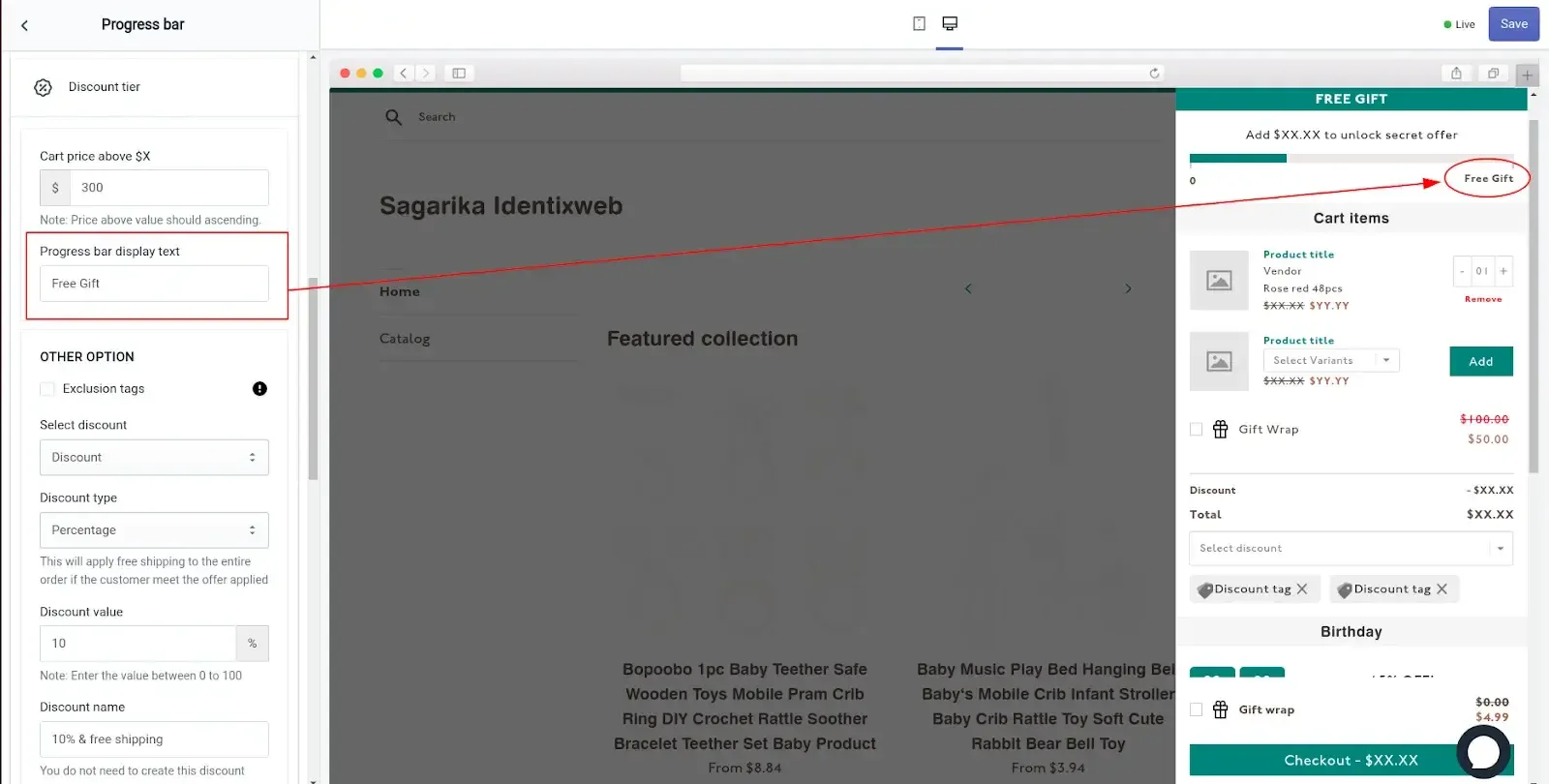
Setting the number: don't guess this. Pull your store's current AOV first. If your average order sits around $45, setting the threshold at $75 is asking for a 67% jump, and most shoppers won't get there. Aim closer to $55 to $60 (20 to 30% above AOV) instead, that gets more carts meaningfully across the line while still growing your average order. - Write the offer text shown to the customer.
- Select "Free Product" from the discount dropdown.
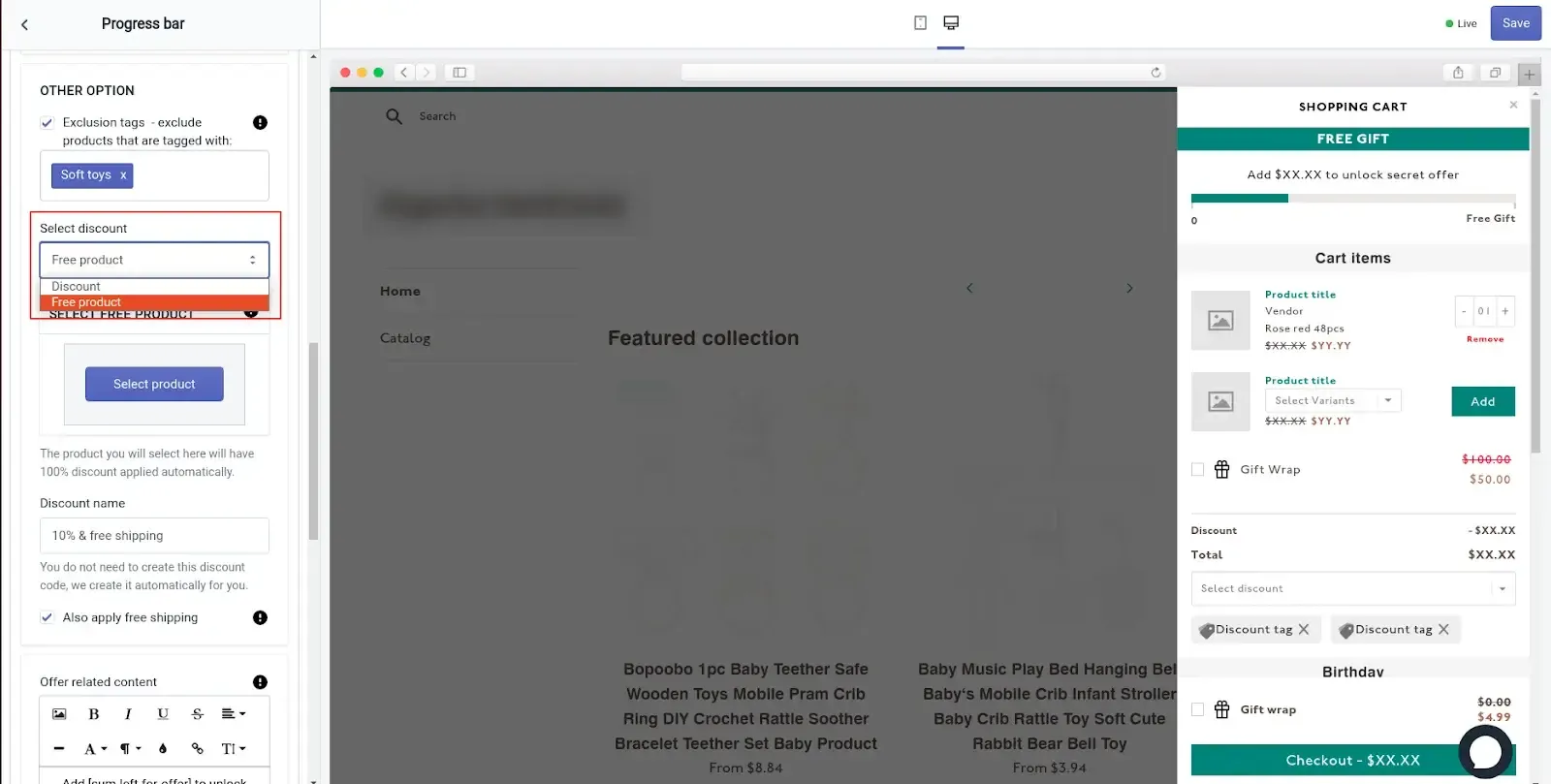
- Pick the gift product via Select Product.
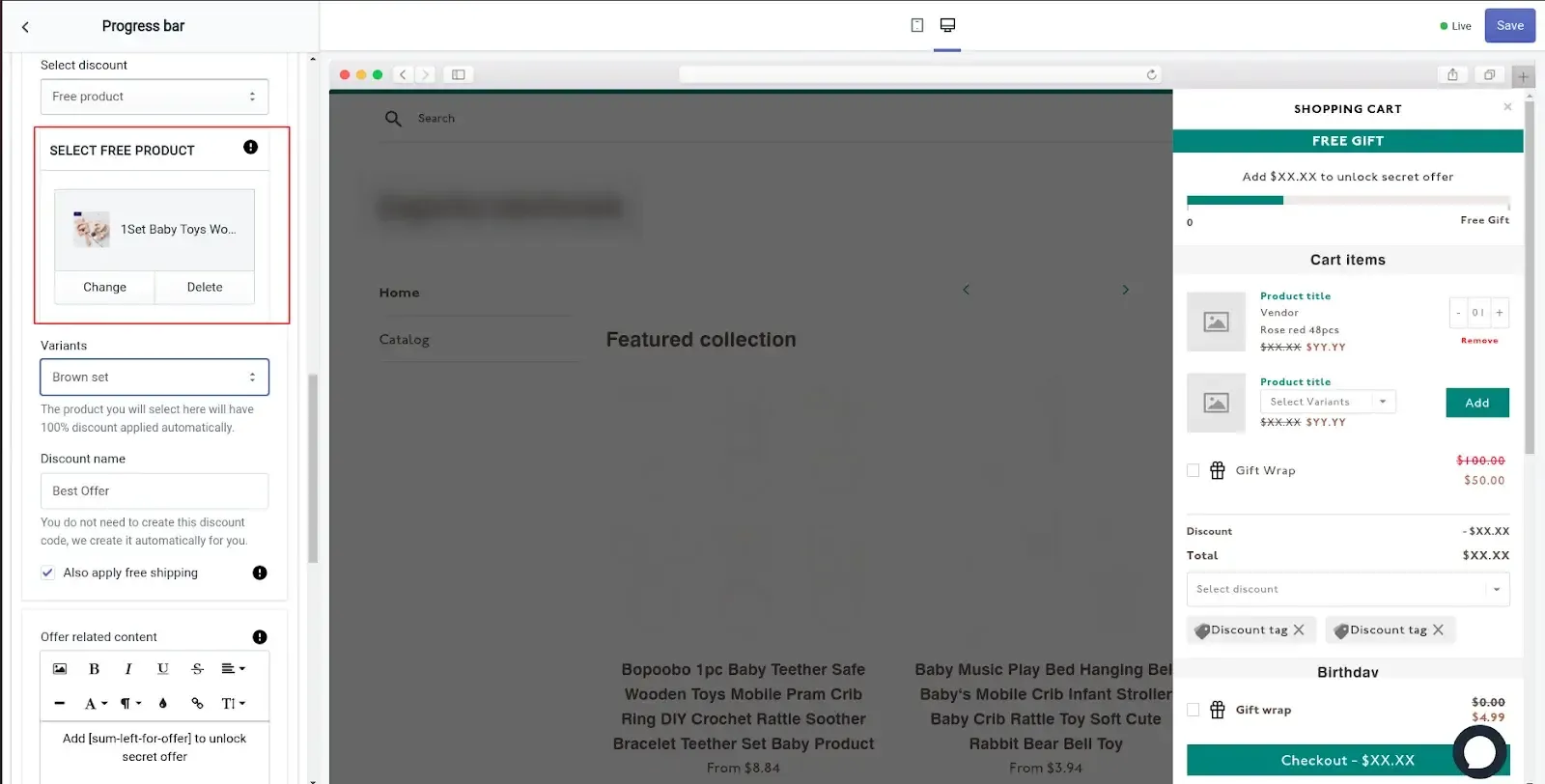
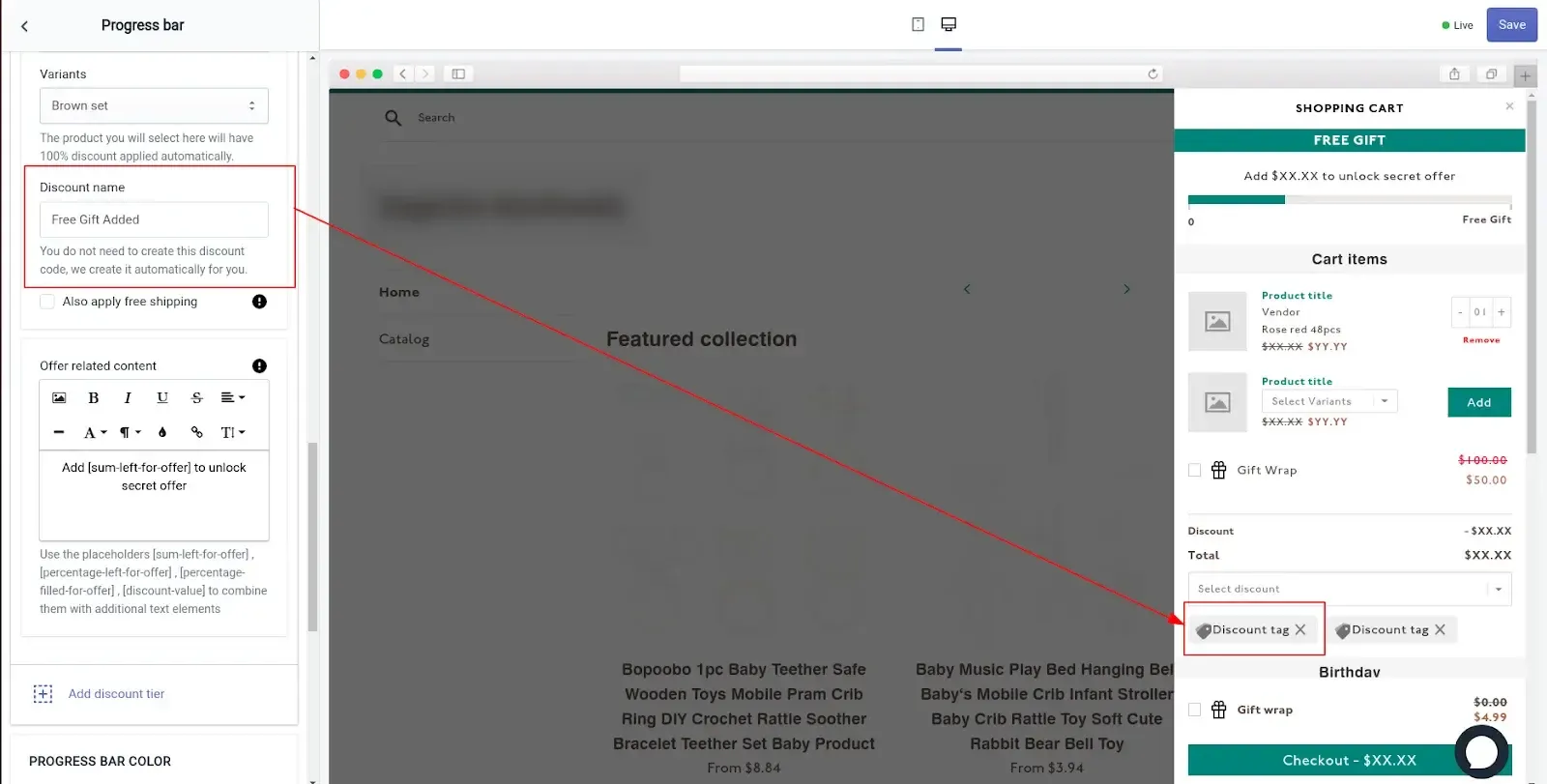
- Name the discount. This is what customers see when the gift is applied. Tick "Also Apply Free Shipping" if you want to bundle that in too.
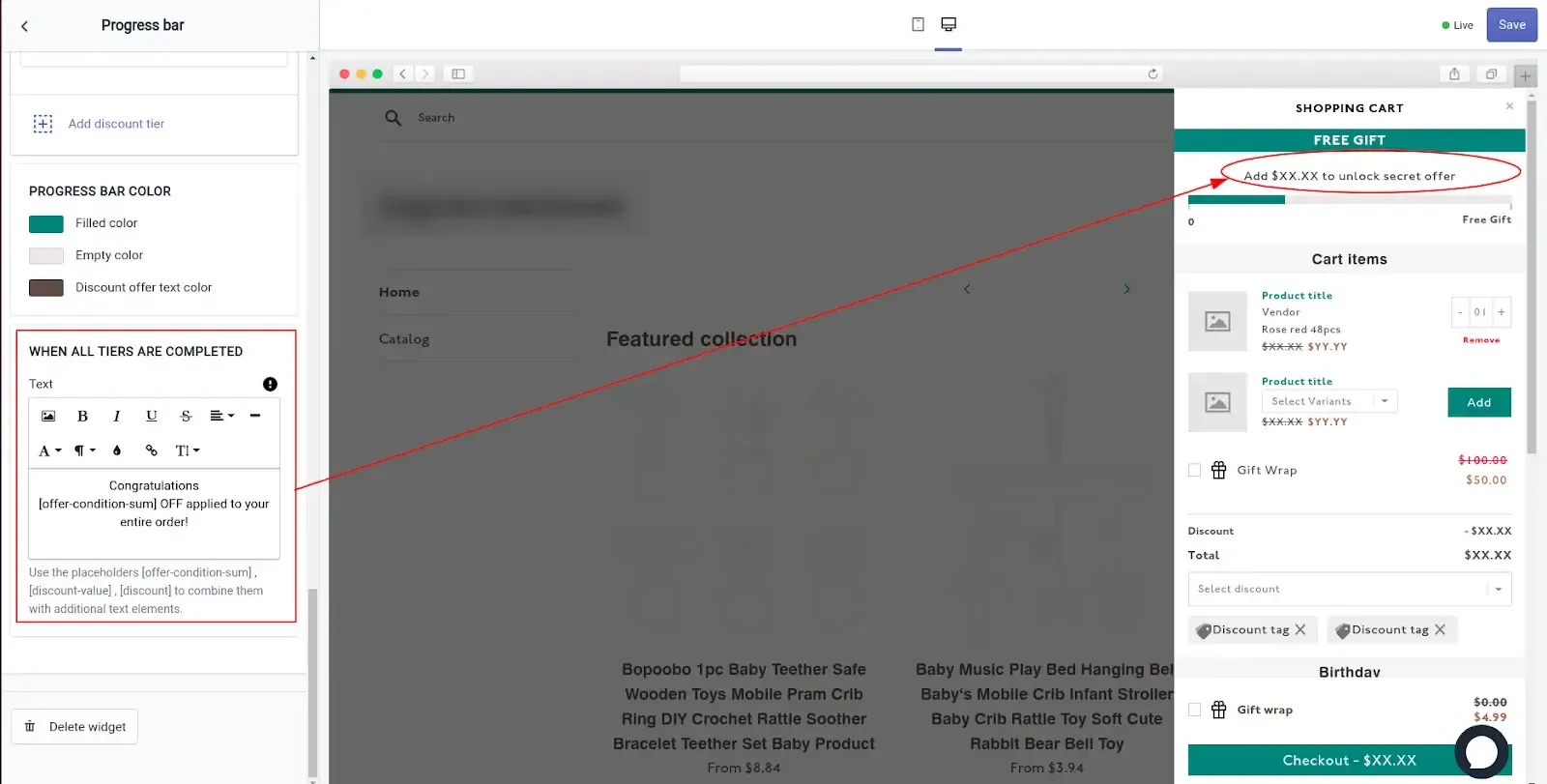
- Write the success message shown when they unlock the gift.
- Save.
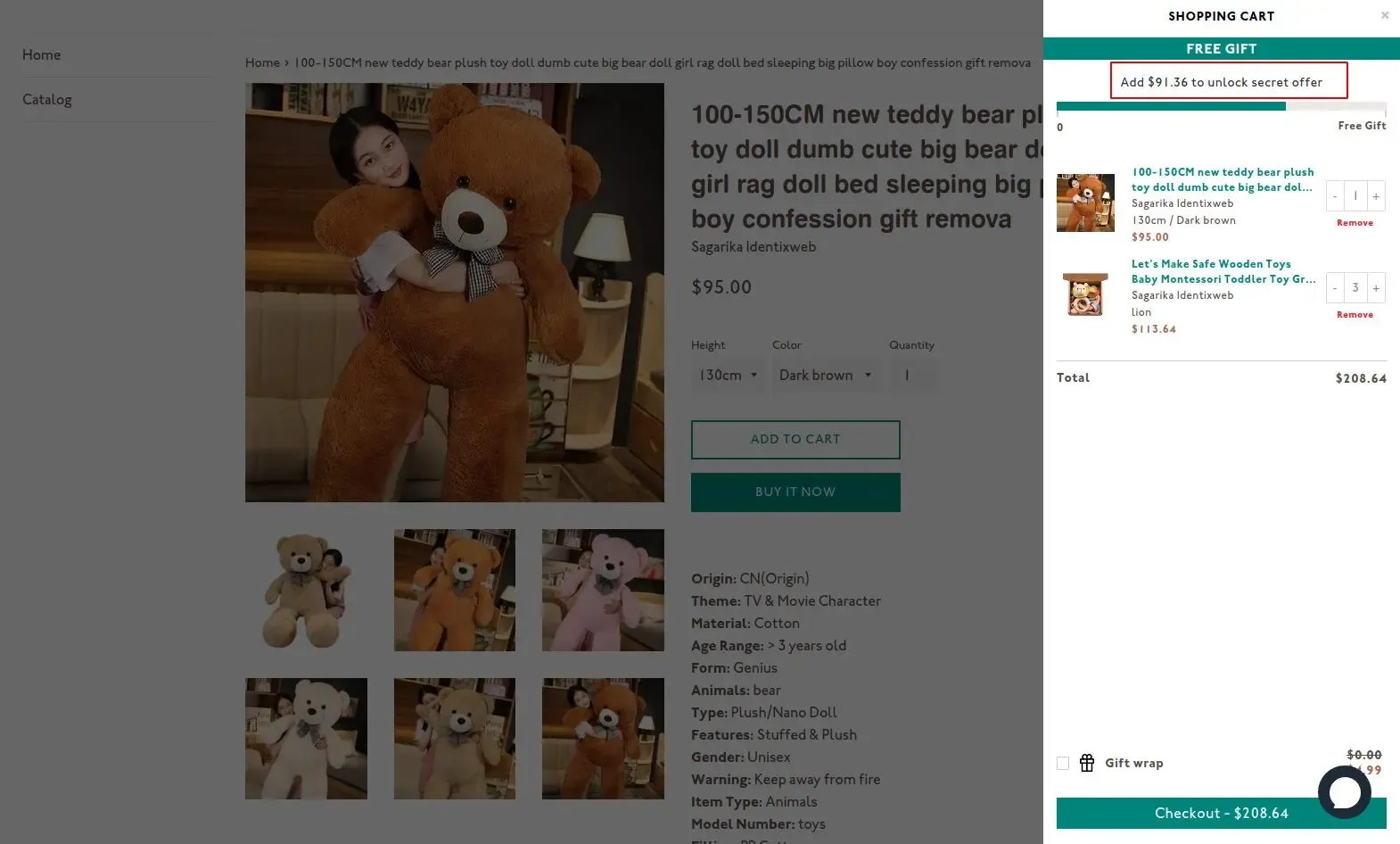
Example: How an iCart Free-Gift Threshold Works
Take a skincare store with a $38 average order value. They set a free gift threshold at $50, roughly 30% above their AOV, and picked a $6-cost travel-size serum as the gift, something they already had overstock of).
A customer adds a $32 cleanser. The cart drawer shows: "Add $18 more to unlock a free serum." They add a $22 toner. The gift is applied automatically, no code needed, and the store just moved a $32 order to $54, using a product that was sitting in a warehouse anyway.
That's the mechanic working as intended: the threshold sits above AOV, the gift cost is low relative to the order lift, and the customer never has to do anything except keep shopping.
Common Free-Gift Campaign Mistakes to Avoid
A few mistakes can make a free-gift campaign less effective or unnecessarily expensive.
Setting the threshold at or below your AOV. Set it above your current average order value so the gift encourages additional spending.
Leaving a native discount without an end date. Set an end date so an old promotion doesn't continue running unnoticed.
Choosing a gift without checking inventory. Make sure the gift is stocked and tracked before launching the campaign.
Stacking automatic discounts without testing. Check how your gift offer interacts with other discounts before going live.
Skipping live testing. Add qualifying products to a test cart and make sure the gift applies correctly before launch.
Showing multiple competing thresholds. If you're offering free shipping and a free gift, combine them into one clear progress experience instead of displaying competing messages.
Why You as Shopify Merchants Use Free-Gift Offers
- Encourage higher cart values. A spending threshold gives customers a clear reason to add another relevant product to their cart.
- Reward customers without discounting the entire order. A free gift can create value while helping you preserve the listed prices of your main products.
- Make the incentive visible. With iCart’s progress bar, shoppers can see the reward and how much more they need to spend to unlock it.
- Support inventory goals. Samples, seasonal products, and selected overstock can become strategic gifts instead of immediate markdowns.
- Create a more memorable customer experience. A useful gift that complements the order can feel more personal than a standard percentage discount.
Launch Your Automated Free-Gift Offer With iCart
Shopify’s native Buy X Get Y discount can work when you are comfortable asking customers to add the gift themselves.
If you want a more visible and automated experience, iCart can show progress toward the reward and add the selected gift when the cart qualifies.
Start with one threshold, one gift, and one clear progress message. After launching, monitor:
- How often shoppers reach the threshold
- Average order value for qualifying orders
- Store conversion rate
- Gift cost and campaign margin
- Remaining gift inventory
If few shoppers qualify, test a more achievable threshold.
If customers qualify but average order value or margin does not improve, review the gift, threshold, and message before adding more incentives.