

The Product Bundle widget allows you to display 2 or 3 products as a bundle that customers can add to their cart together to unlock exclusive discounts. This powerful upsell feature helps boost your average order value by encouraging customers to purchase more related items in one click.
Bundling is a proven marketing strategy that works especially well for products that go together — like sets, kits, or collections (e.g., computers with accessories, gift boxes, or grooming sets).
Let’s go through each setting in detail:
🏷️ Widget Heading
The widget heading helps you organize and identify widgets inside the editor. It doesn't appear on the storefront but is useful when managing multiple widgets in the backend.
🖼️ Title
This is the visible heading shown above the widget on the storefront.
You can customize:
- Show/hide title
- Heading background color
- Widget background color
These styling options let you match the widget with your brand's look and feel. Learn more about these options →
🛒 Select Products – Bundle Type
Choose how you want to display bundled products:
➤ Shopify Recommendation
This will auto-suggest products using Shopify's product recommendation engine.
Options include:
- Exclude Tags: Exclude products with certain tags.
- Hide Products Already in Cart: Avoid showing products already added.
- Number of Products: Choose 2 or 3 products to bundle.
- Loader Text: Shown while bundle products load.
➤ Specific Products
Manually select 2 or 3 specific products to display in the bundle.
You’ll see:
- Product 1, 2, and 3 (Product 3 activates after clicking "Add Product")
- If a product is already in the cart, choose from:
- Display this product anyway
- Hide this bundle
- Display alternative product
Alternative Product Example:
If you bundle A, B, and C — and A & B are already in the cart, then it will show C + your chosen alternative product (like product D).
"Already in Your Cart" Badge
If one or more products in the bundle are already in the customer’s cart, you can highlight them using a badge.
Customize:
- Badge text
- Background color
- Text color
🔄 Bundle Behavior When Product Is Already in Cart
If a product in the bundle is already in the cart, you can choose to:
- Replace the original product with the discounted bundle
- Keep the original product and add it again as part of the bundle
🧩 Layout
Choose how the products appear:
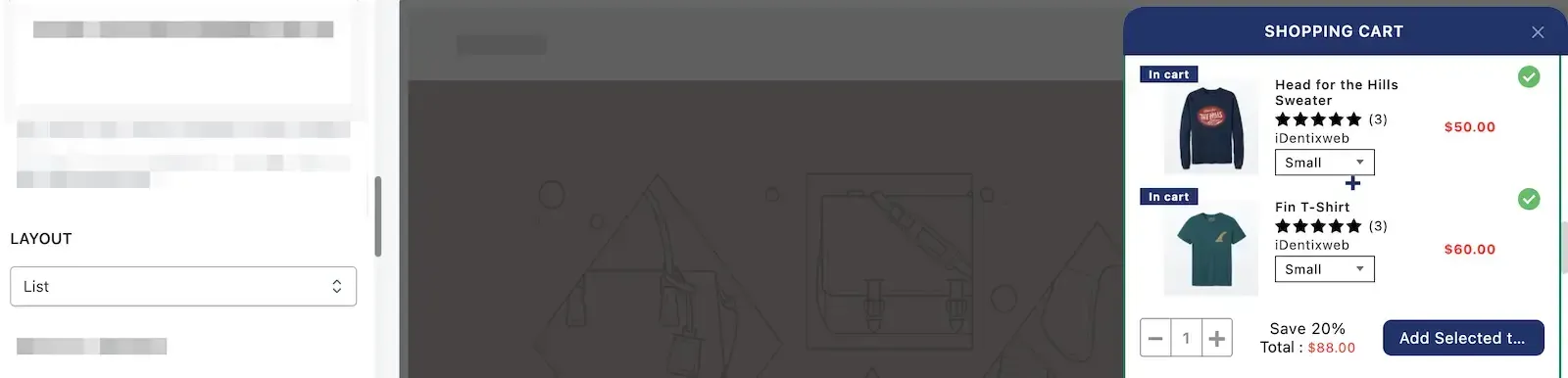
- List: One below the other
- Grid: Side by side
➞ List view
➞ Grid view
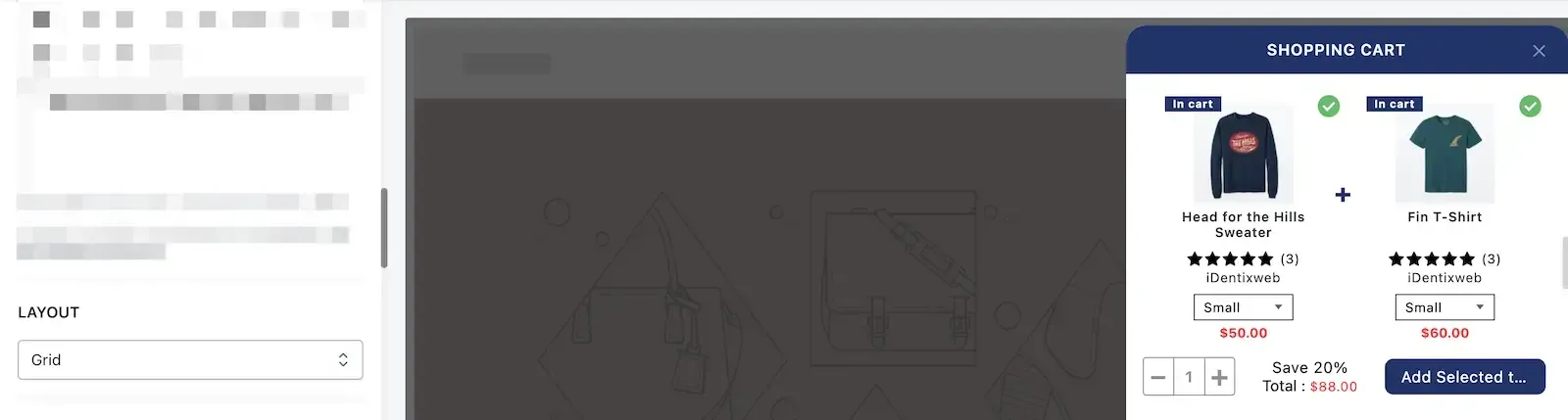
Pick the layout that best suits your theme and display space.
⚙️ Product Options
You can enable or disable various product-level settings like quantity selector, variant selector, product image, title, etc. These options help fine-tune the design and functionality of each bundled item.
Learn more about common product display settings →
💸 Bundle Offer
Choose how the discount will be applied:
- Percentage: Discount by % on total price
- Fixed Amount: Subtract a flat amount
- Select Bundle Price Manually: Set a flat price for all items when bought as a bundle
You’ll also configure:
- Discount value: The % or amount to reduce
- Discount name: Label shown in the cart to highlight the deal
🛍️ Add to Cart Offer Text Settings
Customize the text and design of the "Add Bundle to Cart" button:
- Button text
- Background color
- Text color
This helps you create a compelling call-to-action.
⏰ Timer Limited Offer
Add urgency to your offer by setting a countdown timer. This feature motivates customers to act quickly before the bundle deal expires.
Learn more about timer settings →
💰 Price Display
Control how the original price, discount amount, and final price are shown. You can show or hide prices, strikethrough original prices, or highlight savings.
Learn more about price display options →
⭐ Star Reviews
Display star ratings from your review app under each product in the bundle to build trust and encourage more purchases.
🧩 Rules
Set rules to control when and where the widget appears — such as specific pages, customer tags, or cart conditions.
Learn more about widget rules →
🗑️ Delete Widget
To remove a product bundle widget, click the delete widget button in the widget settings panel. Deleting a widget will remove it from the cart.
💬 Need Help?
If you have any questions or need assistance setting up your Product Bundle widget, feel free to email us or live chat with our support team — we’re always here to assist you!