


📊 Overview
The Progress Bar widget in the iCart app lets you offer multiple discount rewards — such as free shipping, percentage-based discounts, free product (with percentage), or fixed-amount discounts — based on how much a customer adds to their cart. It's a powerful way to boost average order value and motivate customers to spend more.
✏️ Widget Heading
The Widget Heading helps you identify each widget inside the iCart editor. If you're using multiple same widgets, adding a unique heading makes it easy to tell them apart.
🏷️ Title Settings
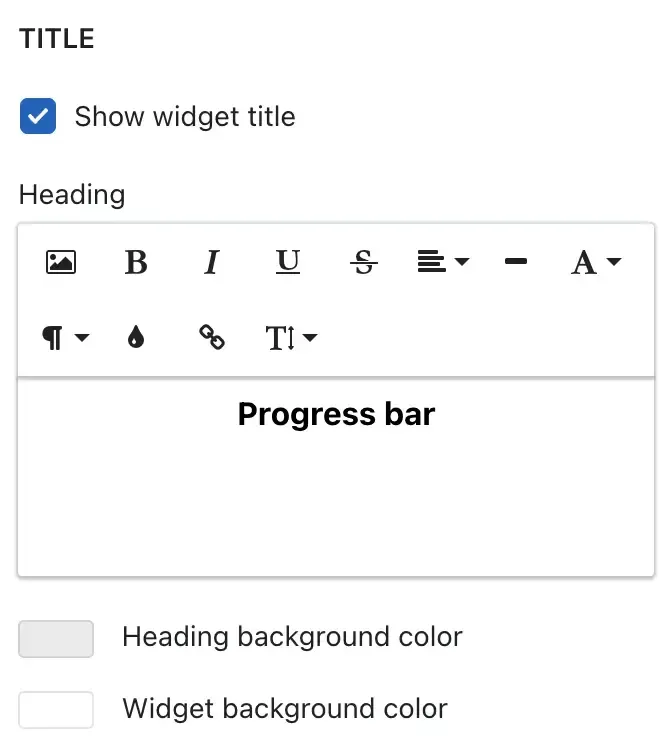
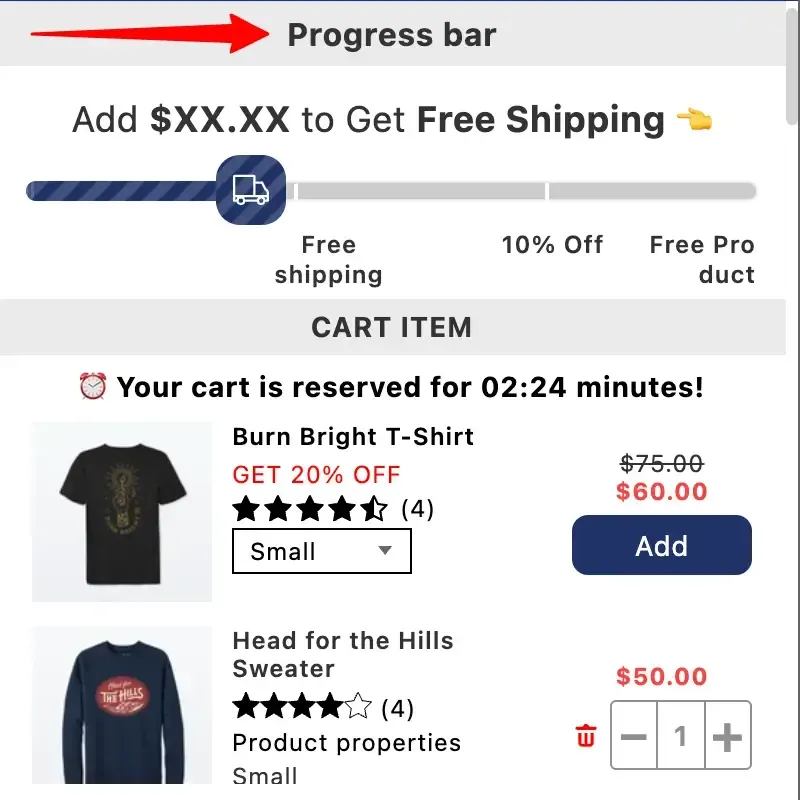
The Title appears at the top of the widget in the cart drawer — it’s what your customers will see.
Title customization options:
- Show or hide the title
- Change the heading background color
- Change the entire widget background color
 ➞ Result
⚙️ Settings
Under the Settings section, you can configure the look and functionality of the progress bar widget.
🎨 Select Layout
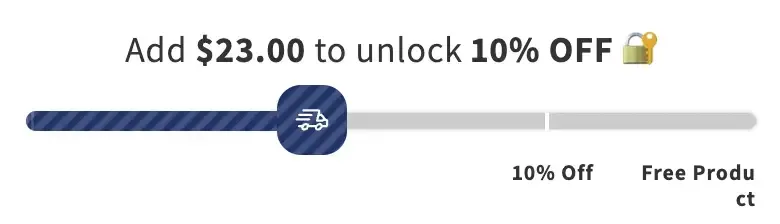
Choose from 5 layout styles to match your store’s theme. Each layout offers a different design of the progress bar.
➞ Basic progress bar
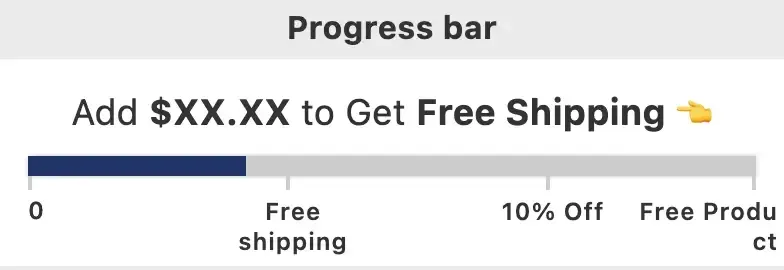
➞ Rounded bar
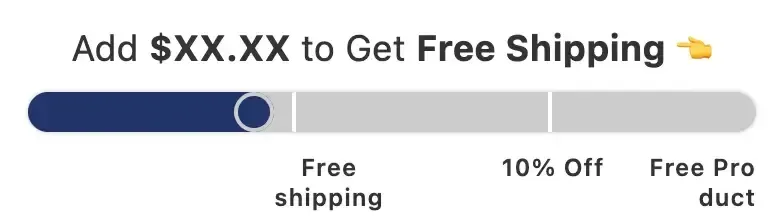
➞ Slick and simplified

➞ Informative status
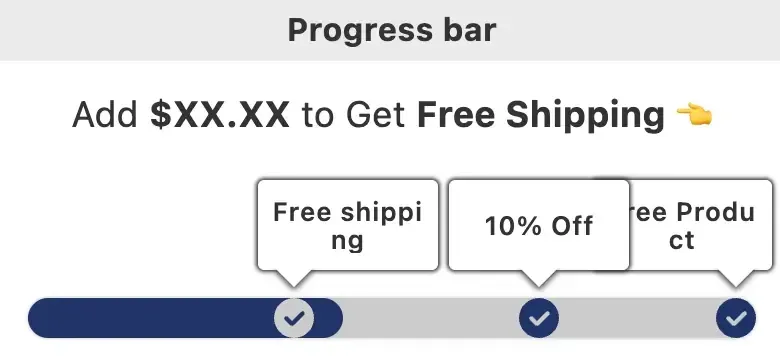
➞ Animated status bar
🖌️ Progress bar color options
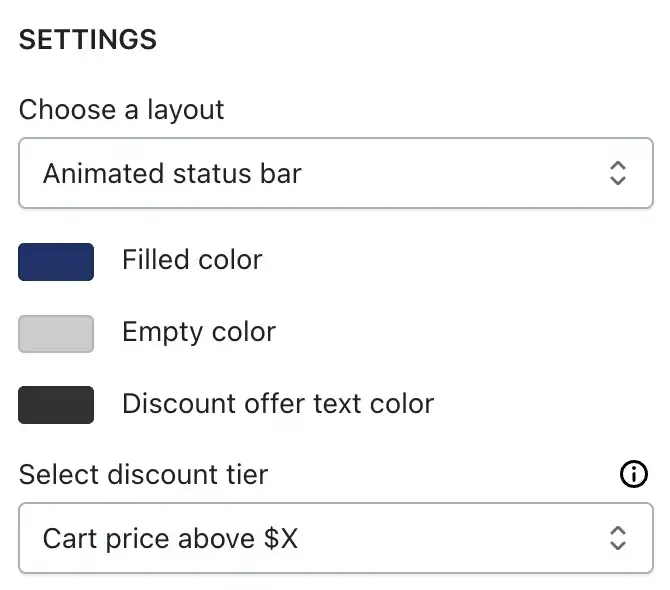
After selecting a layout, you can customize how your progress bar looks using the following color settings:
- Filled color – The color that fills the progress bar as the customer gets closer to unlocking a discount.
- Empty color – The background color for the unfilled portion of the progress bar.
- Discount offer text color – The text color used for displaying discount messages inside the bar.
🎯 Select Discount Tier Type
Choose how the progress bar calculates when to apply rewards:
- Cart price above X: Reward is triggered when the cart total exceeds a certain amount.
- Cart items above X: Reward is triggered when the number of items in the cart exceeds a specific quantity.
These design options help you match the widget to your store’s branding and create a visually engaging experience for your customers.
🪜 Add Discount Tiers
Each discount tier represents a milestone — for example, “Spend $100 to get free shipping.” You can add multiple tiers and choose from four discount types to suit your promotion strategy:
01. 🎁 Discount – Choose from:
- Free Shipping
- Percentage Discount
- Fixed Amount Discount
02. 🆓 Free Product – Offer up to 3 products for free. You can also apply free shipping by enabling the “Also apply free shipping” option.
03. 💥 Free Product with Discount – Combine a free product with an additional percentage discount.
04. 📣 No Discount – Show only the offer-related message at a certain cart threshold without applying any discount. This is useful if you want to highlight messages but handle the actual discount elsewhere.
🛒 Discount tier options
- Cart price above X: Set the minimum subtotal required to apply the discount.
- Country: Target specific countries for location-based offers.
- Exclusion tags: Exclude entire tiers if certain tagged products are in the cart.
- Exclude product from subtotal: Exclude only the product’s value from the subtotal without removing the tier.
- Error message text: Display a warning when excluded products are added to the cart.
- Offer-related text: Show a message like “Add $10 more to get 10% off”.
- Select Discount Type:
- Discount (Free shipping / Percentage / Fixed amount)
- Free Product
- Discount name: Label used in the cart drawer.
- Offer-related text: Custom text shown when the offer conditions aren’t met.

🎉 Discount tier success message options
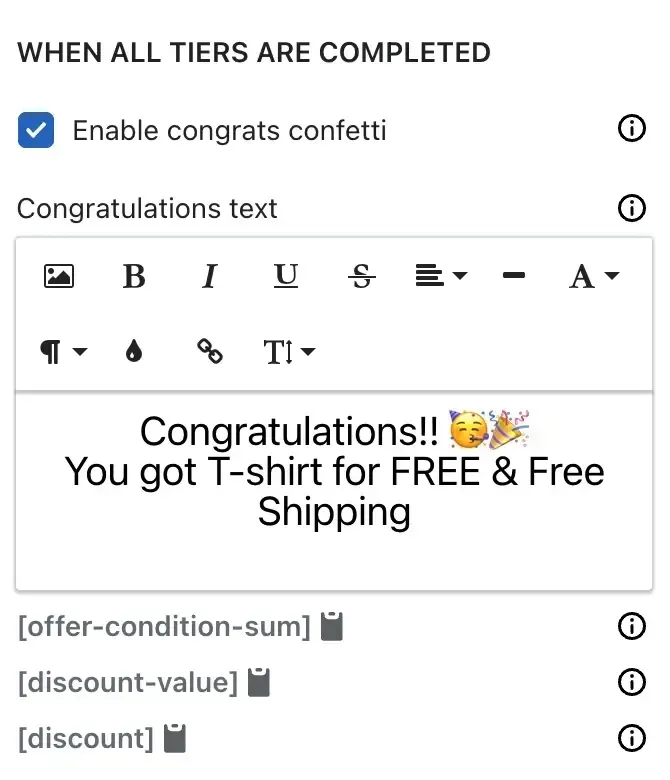
🎊 Enable Congrats Confetti
Want to make the moment more exciting?
Enable this option to trigger a celebratory confetti effect when all discount tiers are achieved. This visual cue adds a fun, rewarding touch to your customers’ shopping experience.
🎉 Congratulations text
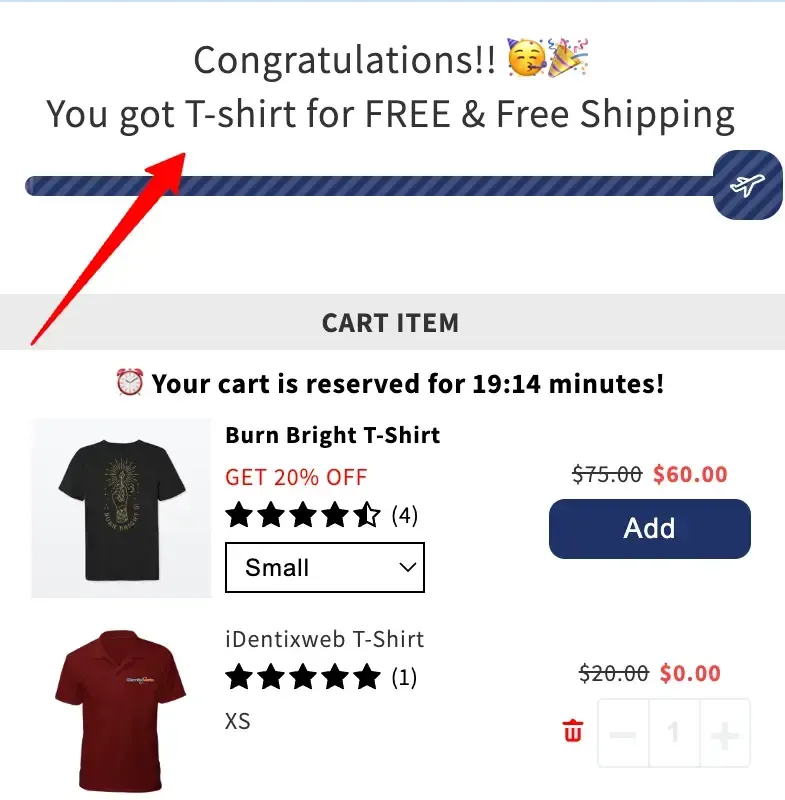
Once a customer meets all discount tiers you’ve configured, the success message will appear — a final confirmation that they’ve unlocked the full offer.
💡 Tip: To display dynamic values in your message, you can use the following shortcodes:
[offer-condition-sum]— shows the required amount or quantity to unlock the tier[discount-value]— displays the actual value of the discount[discount]— shows the type of discount applied (e.g., Free Shipping, 10% Off)
These shortcodes help you personalize the messaging automatically based on the customer’s cart.
 ➞ Result
Read this guide and watch the below video tutorial to understand the working of the Progress Bar widget.