


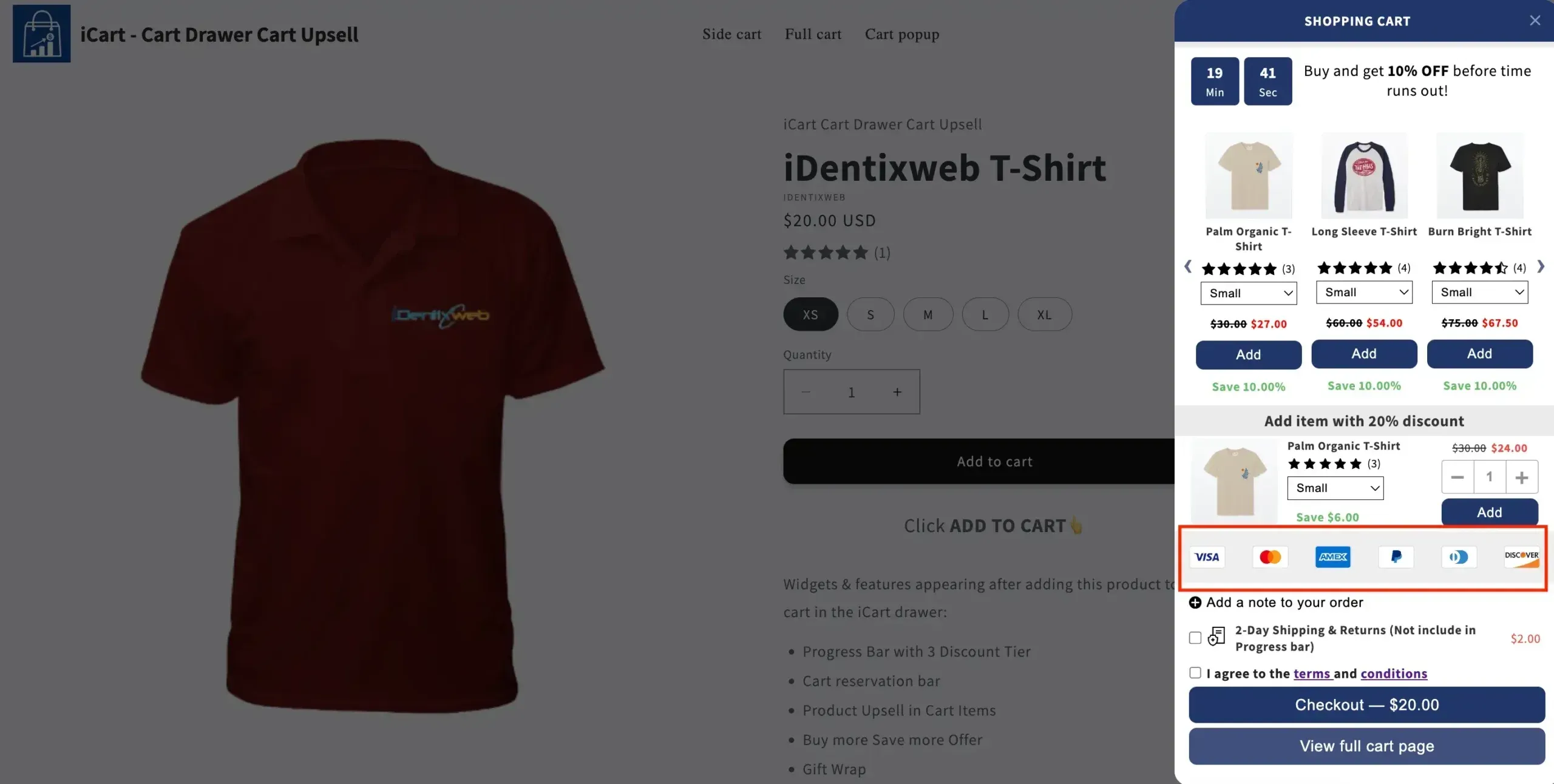
Adding payment icons to your cart page helps build trust and confidence before checkout. When your customers see familiar payment methods like Visa, Mastercard, PayPal, or American Express right inside the cart, they feel more comfortable completing their purchase.
With the iCart Cart Drawer Cart Upsell app, you can easily display payment icons inside your cart using the Custom HTML widget.
Why Add Payment Icons to Your Cart?
- Builds trust - Customers recognize familiar payment logos and feel confident purchasing.
- Reduces friction - Customers don't need to visit the checkout page just to check which payment methods you accept.
- Smoother checkout - When payment options are visible early, customers can move through checkout without hesitation.
- Professional appearance - A cart with payment icons looks polished and complete.
How It Works
iCart allows you to customize the cart layout using widgets. The Custom HTML widget lets you paste any HTML - including payment icon SVG code - directly into your cart.
- Identify which payment methods your store accepts.
- Get the SVG/HTML code for those payment icons.
- Add the HTML to your cart using the Custom HTML widget in iCart.
Quick (Side) Cart
- Log in to your Shopify Admin.
- Open the iCart Cart Drawer Cart Upsell app.
- On the dashboard, find Quick Cart and click Customize.
- Go to the Widgets tab.
- Click Add Widget, find Custom HTML, and click Add.
- Paste your payment icon HTML into the widget HTML field.
- Position the widget, then click Save.
Full Cart
- Log in to your Shopify Admin.
- Open the iCart app and customize Full Cart.
- Add the Custom HTML widget and paste your payment icon HTML.
- Position the widget and click Save.
Fixing Alignment with Custom CSS
After adding the code, icons might appear misaligned depending on your theme. Add custom CSS in the iCart customizer, or contact support for help.