


To display the widget based on some conditions you need to set the rules.
Following are the parameters you can use to set the rules:
(1) Cart sum
(2) Number of items in cart
(3) A specific item
(4) A specific collection
(5) Product tags
(6) User location
(7) Specific date & time range
(8) URL base show widget
(1) Cart Sum:
To display the widget based on the sum of the cart value you can use this parameter and conditions.
Conditions:
(i) Is less than
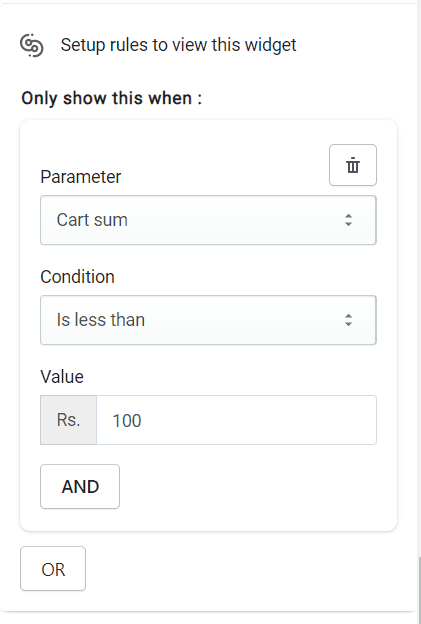
For ex: If you have set the Cart sum Is less than 100 then the widget will display when the cart sum is less than 100 or else it will not display.
(ii) Is greater than
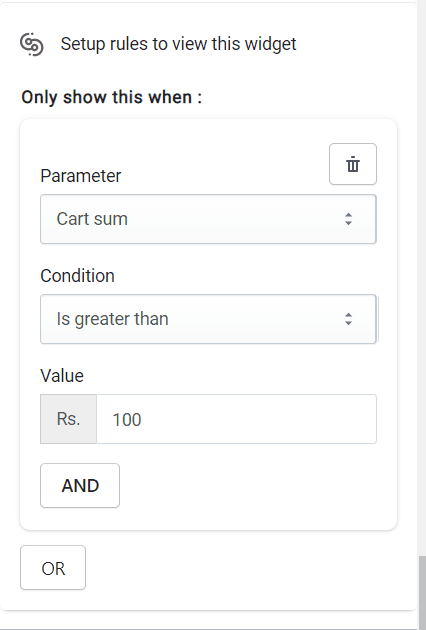
For ex: If you have set the Cart sum Is greater than 100 then the widget will display when the cart sum is greater than 100 or else it will not display.
(iii) Equals
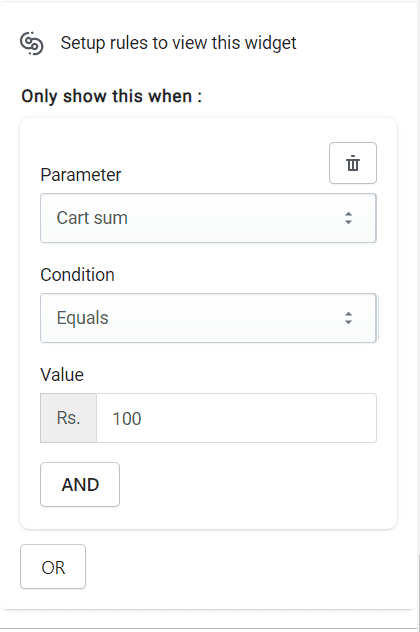
For ex: If you have set the Cart sum Equals 100 then the widget will display when the cart sum Equals 100 or else it will not display.
(2) Number of items in cart:
To display the widget based on the no of items you can use this parameter and conditions.
Conditions:
(i) Is less than
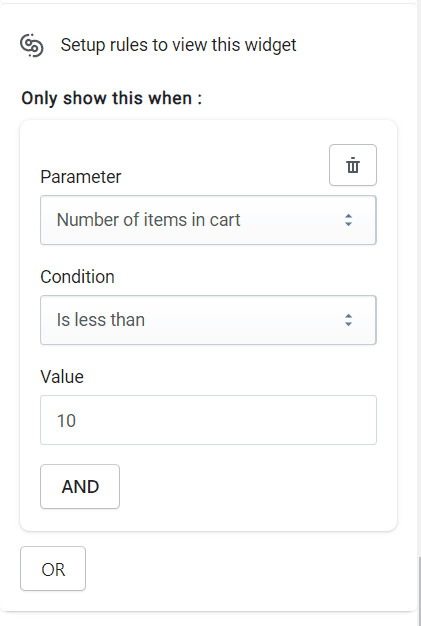
For ex: If you have set the Number of items in cart Is less than 10 then the widget will display when the Number of items in cart is less than 10 or else it will not display.
(ii) Is greater than
For ex: If you have set the Number of items in cart Is greater than 10 then the widget will display when the Number of items in cart is greater than 10 or else it will not display.
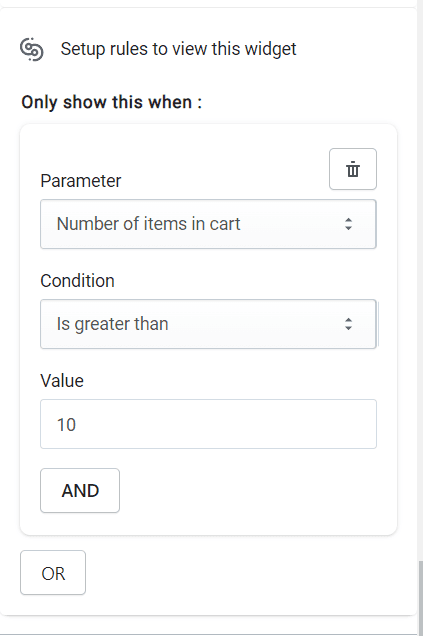
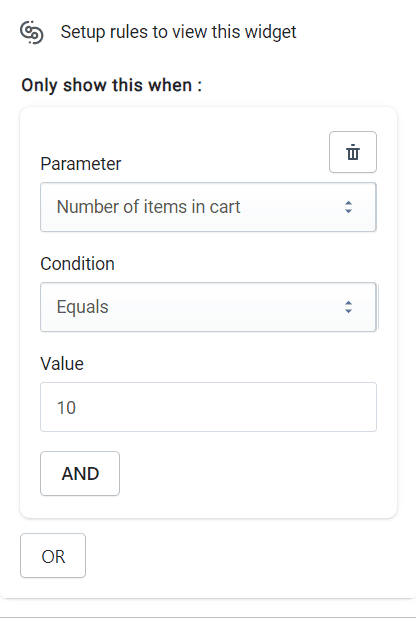
(iii) Equals
For ex: If you have set the Number of items in cart Equals 10 then the widget will display when the Number of items in cart Equals 10 or else it will not display.
(3) A specific item:
To display the widget based on specific item you can use this parameter and conditions.
Conditions:
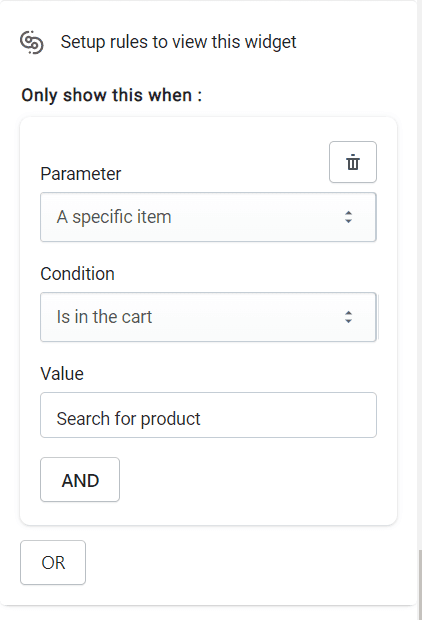
(i) Is in the cart
For ex: If you have set A specific item Is in the cart then the widget will display when the specific item is in the cart or else it will not display.
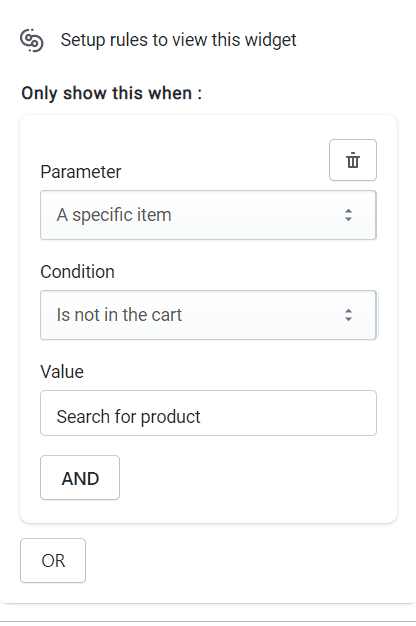
(ii) Is not in the cart
For ex: If you have set A specific item Is not in the cart then the widget will display when the specific item is not in the cart or else it will not display.
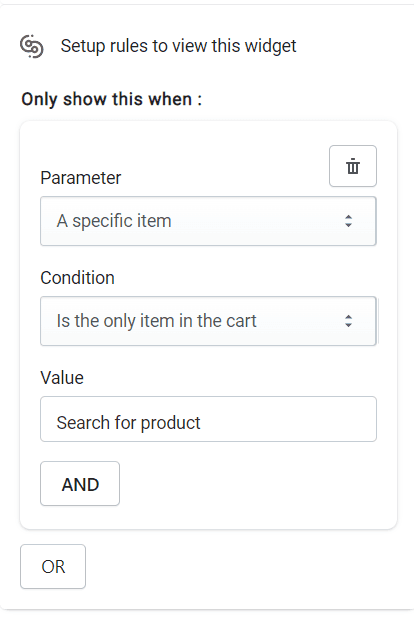
(iii) Is the only item in the cart
For ex: If you have set A specific item Is the only item in the cart then the widget will display when the item is only in the cart or else it will not display.
(4) A specific collection:
To display the widget based on specific collection you can use this parameter and conditions.
Conditions:
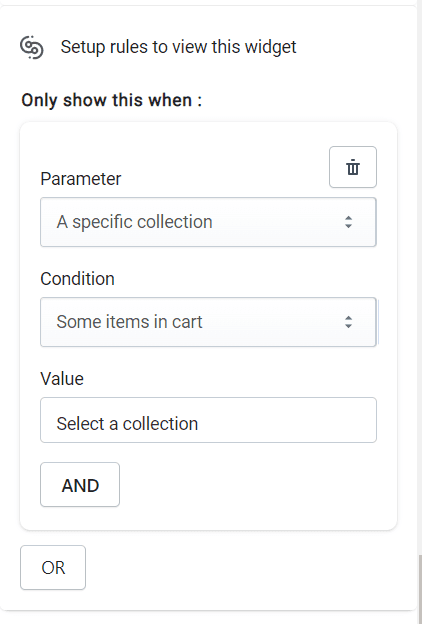
(i) Some items in cart
For ex: If you have set A specific collection from which Some items in cart then the widget will display when some item from the collection is in the cart or else it will not display.
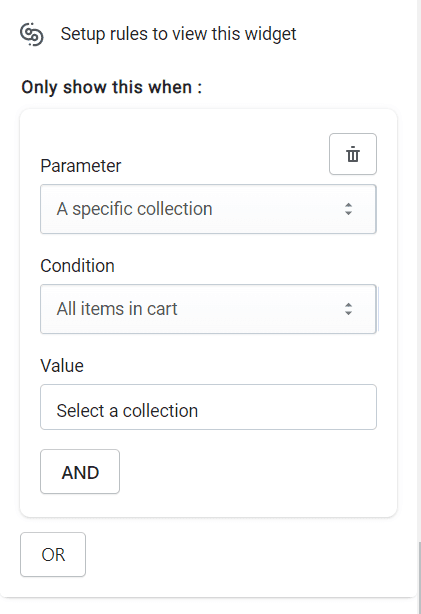
(ii) All items in cart
For ex: If you have set A specific collection from which All items in cart then the widget will display when all item from the collection is in the cart or else it will not display.
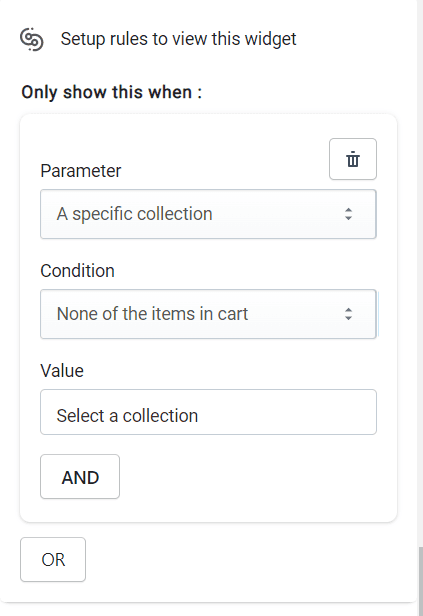
(iii) None of the items in cart
For ex: If you have set A specific collection from which None of the items in cart then the widget will display when all item from the collection is in the cart or else it will not display.
(5) Product tags:
To display the widget based on product tags you can use this parameter and conditions.
Conditions:
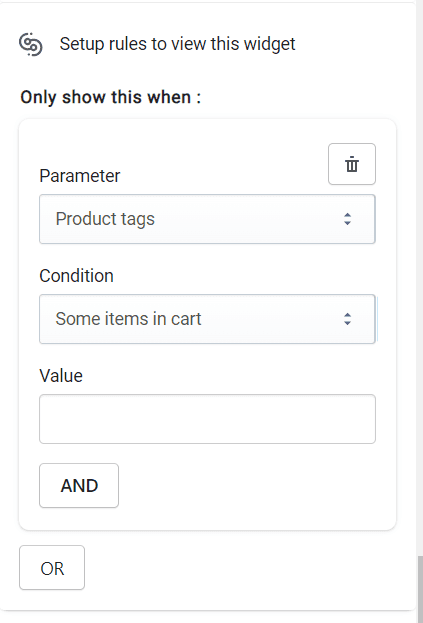
(i) Some items in cart
For ex: If you have set Product tags from which Some items in cart then the widget will display when some item from the collection is in the cart or else it will not display.
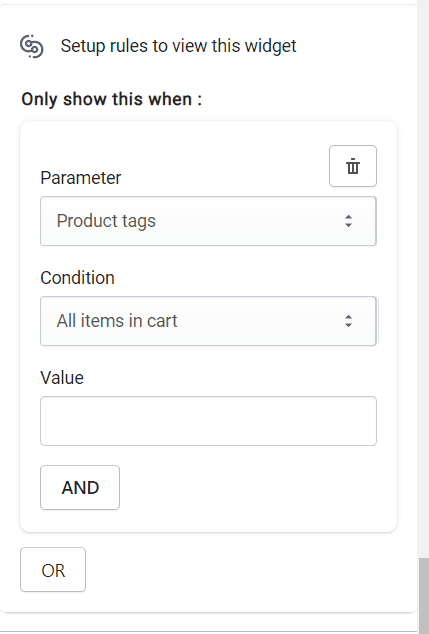
(ii) All items in cart
For ex: If you have set Product tags from which All items in cart then the widget will display when all item from the collection is in the cart or else it will not display.
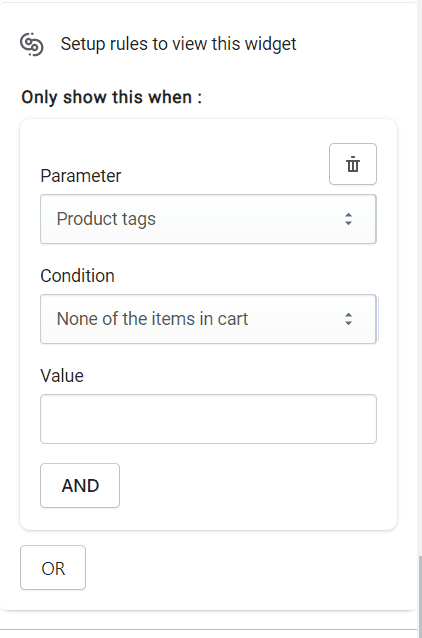
(iii) None of the items in cart
For ex: If you have set Product tags from which None of the items in cart then the widget will display when all item from the collection is in the cart or else it will not display.
(6) User location:
To display the widget based on user location you can use this parameter and conditions.
Conditions:
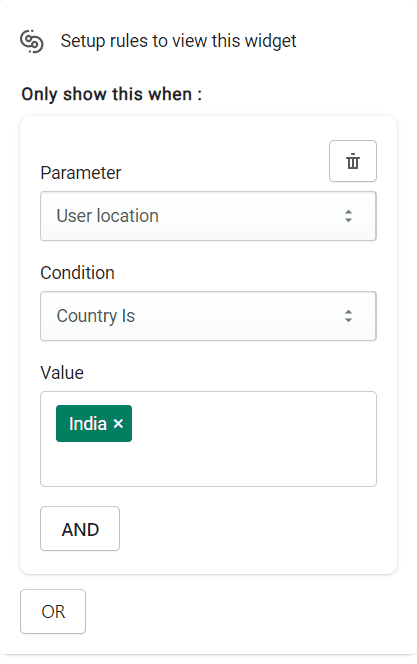
(i) Country Is
For ex: If you have set User location based on the Country is India then the widget will display when someone who is from India location or else it will not display.
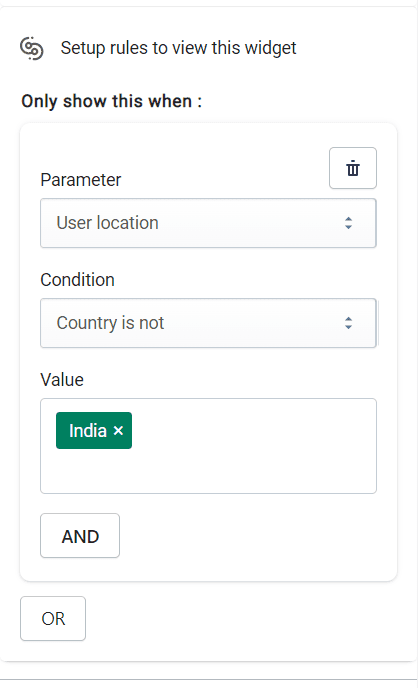
(ii) Country is not
For ex: If you have set User location based on the Country is not India then the widget will display when someone who is not from India location or else it will not display.
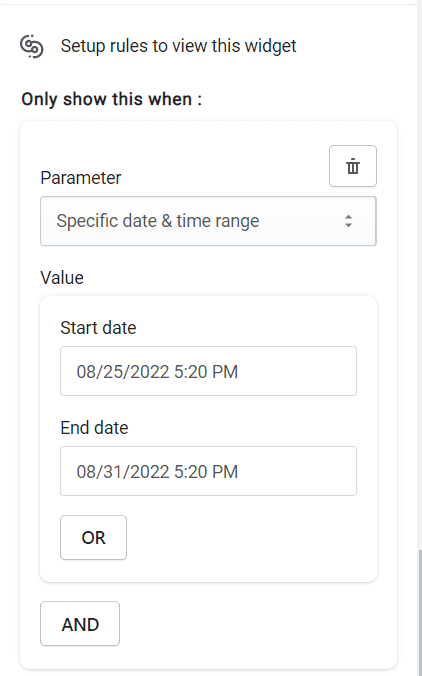
(7) Specific date & time range: To display the widget based on specific date range you can use this parameter and value.
Value:
(i) Start Date & End Date
For ex: If you have set Specific date & time range based on the Start Date & End Date then the widget will display between that date only or else it will not display.
(8) URL base show widget:
To display the widget based on URL you can use this parameter and conditions.
Conditions:
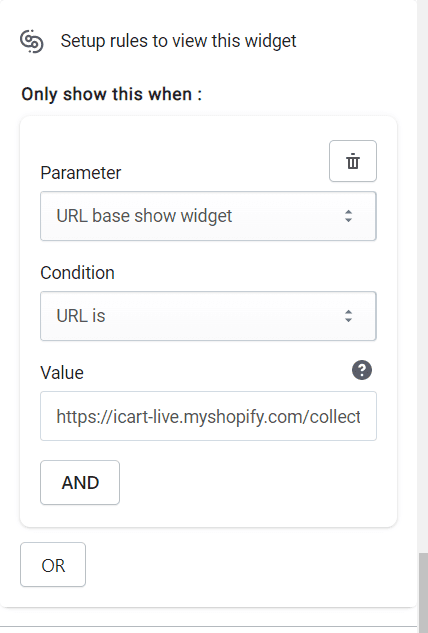
(i) URL is
For ex: If you have set URL base show widget based on URL is https://icart-live.myshopify.com/collections then the widget will display when the customer open the exactly same url or else it will not display.
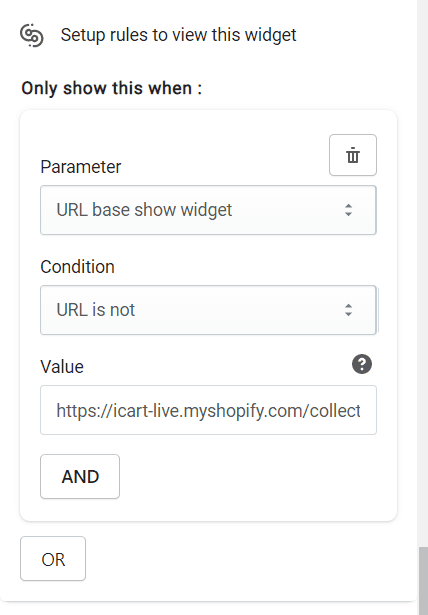
(ii) URL is not
For ex: If you have set URL base show widget based on URL is not https://icart-live.myshopify.com/collections then the widget will display or else it will not display.
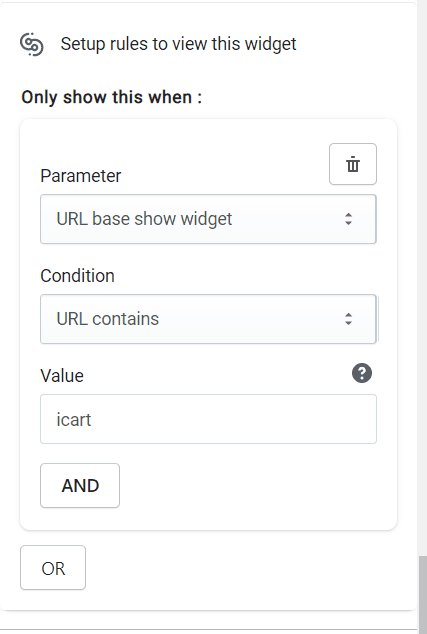
(iii) URL contains
For ex: If you have set URL base show widget based on URL contains icart then the widget will display or else it will not display.
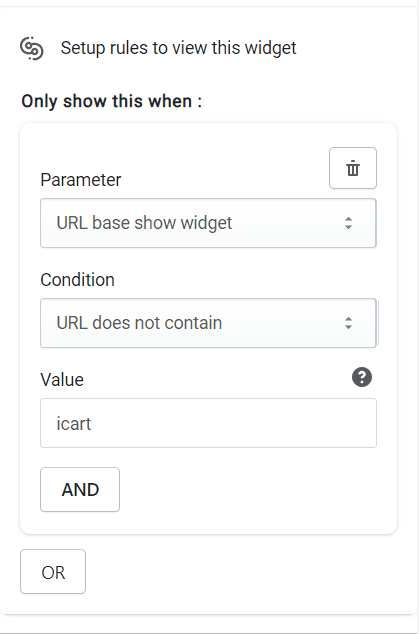
(iv) URL does not contain
For ex: If you have set URL base show widget based on URL does not contains icart then the widget will display or else it will not display.
Need Help?
If you face any issues or have any questions regarding the app, don’t hesitate to drop a message in live chat or email us. We’re here to assist you every possible solutions!